
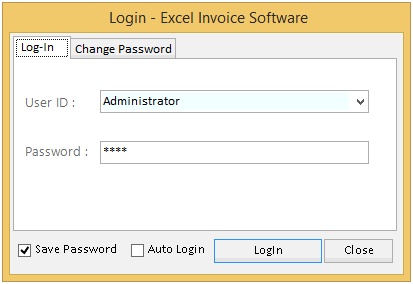
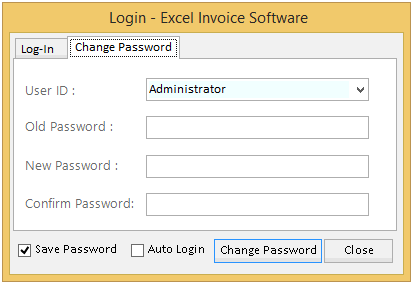
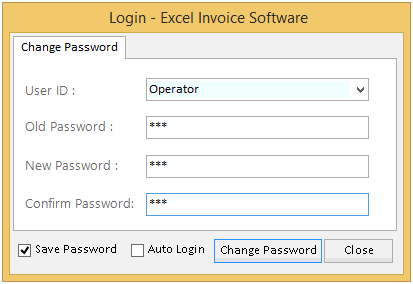
 To change the password click on Change Password as shown above and fill rest of the blanks.
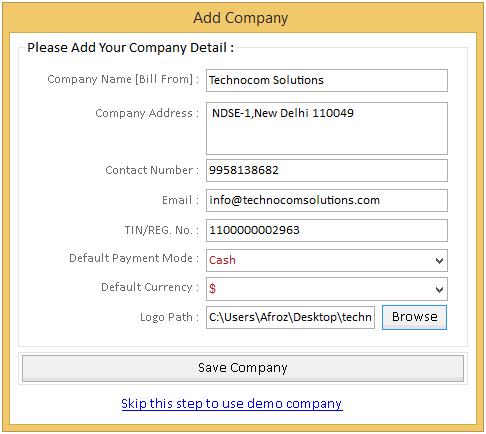
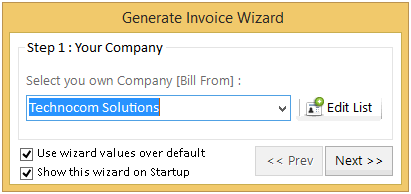 Click on next button to complete the process.
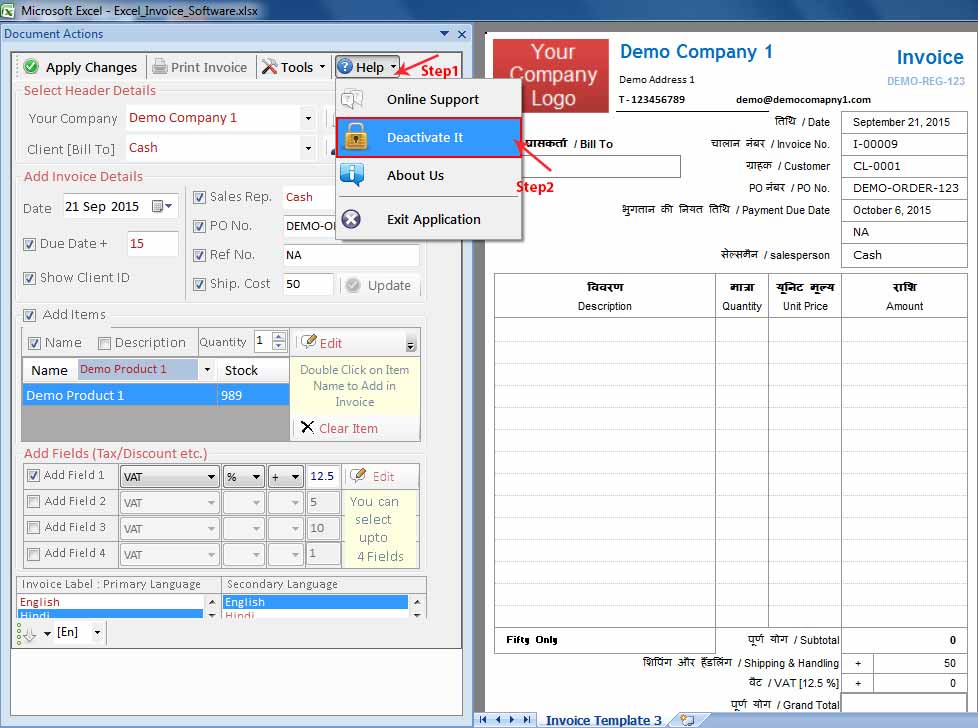
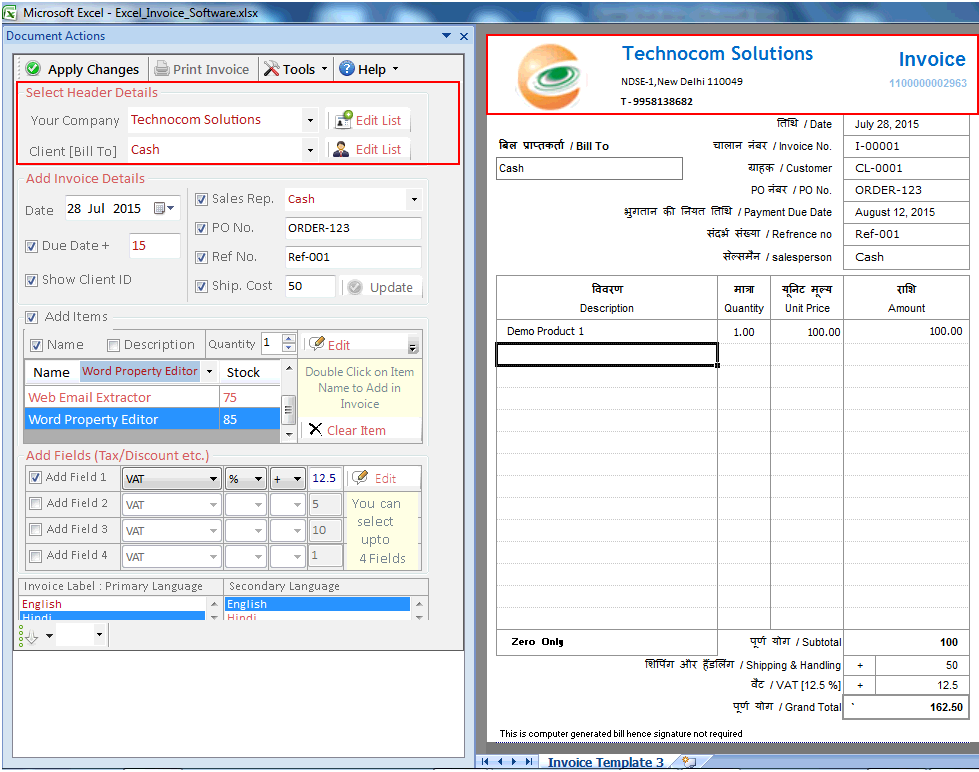 -Now write the details of the Invoice in the div ‘Add Invoice Details’.
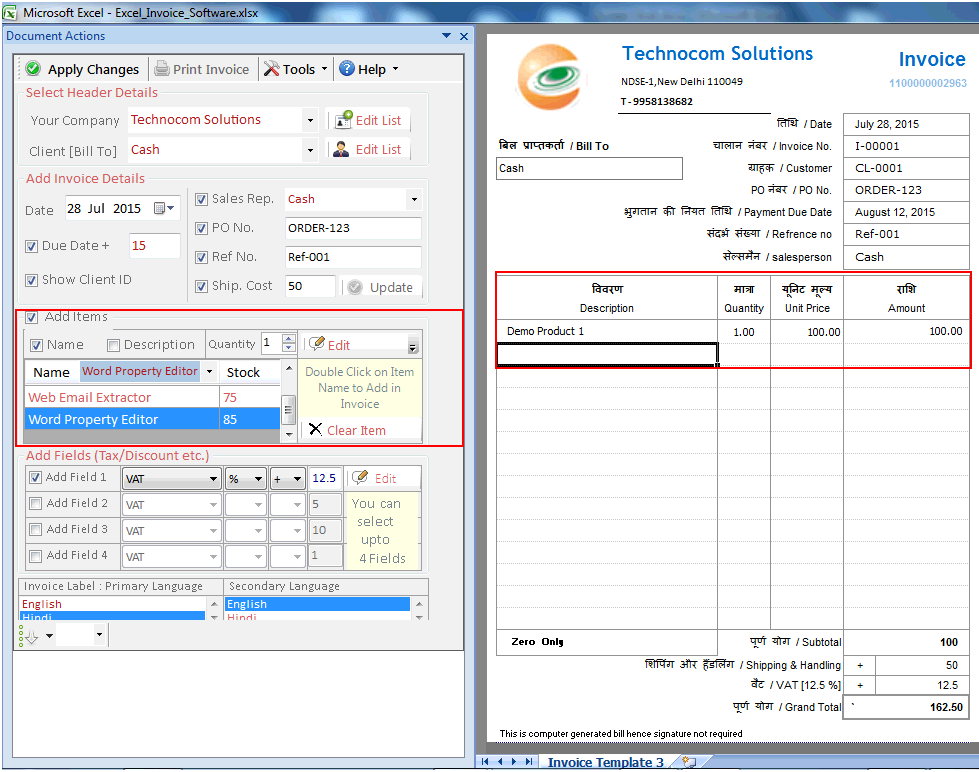
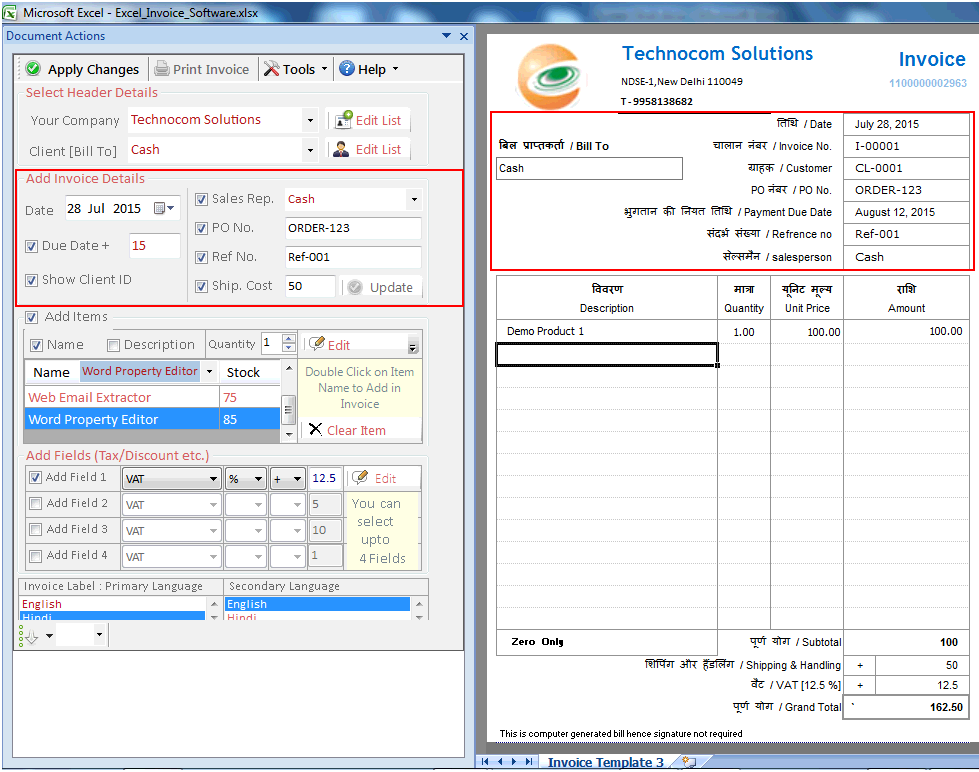 -The next step is to add products and stock in the div given below Invoice div.
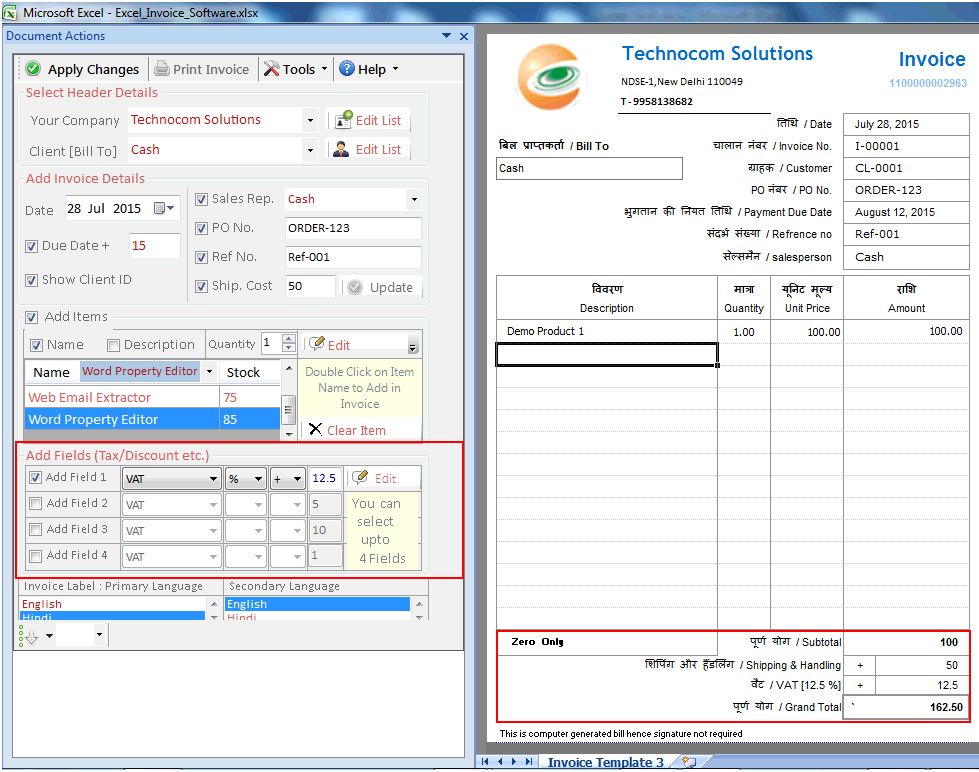
 -Afterwards user has to set up the field of Tax & discounts.
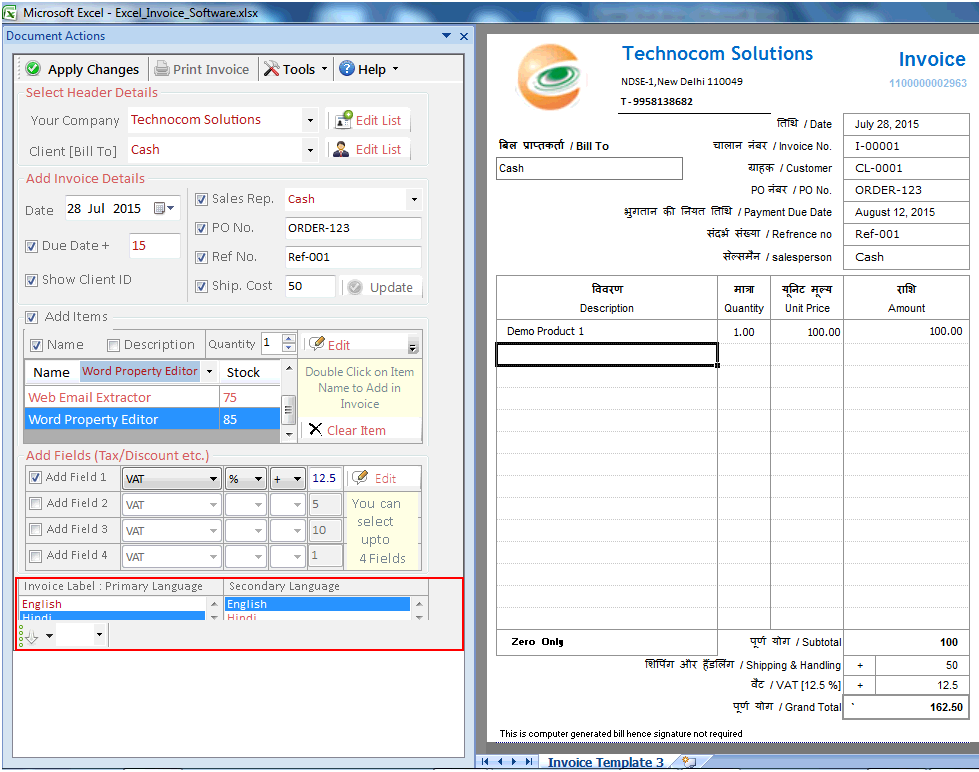
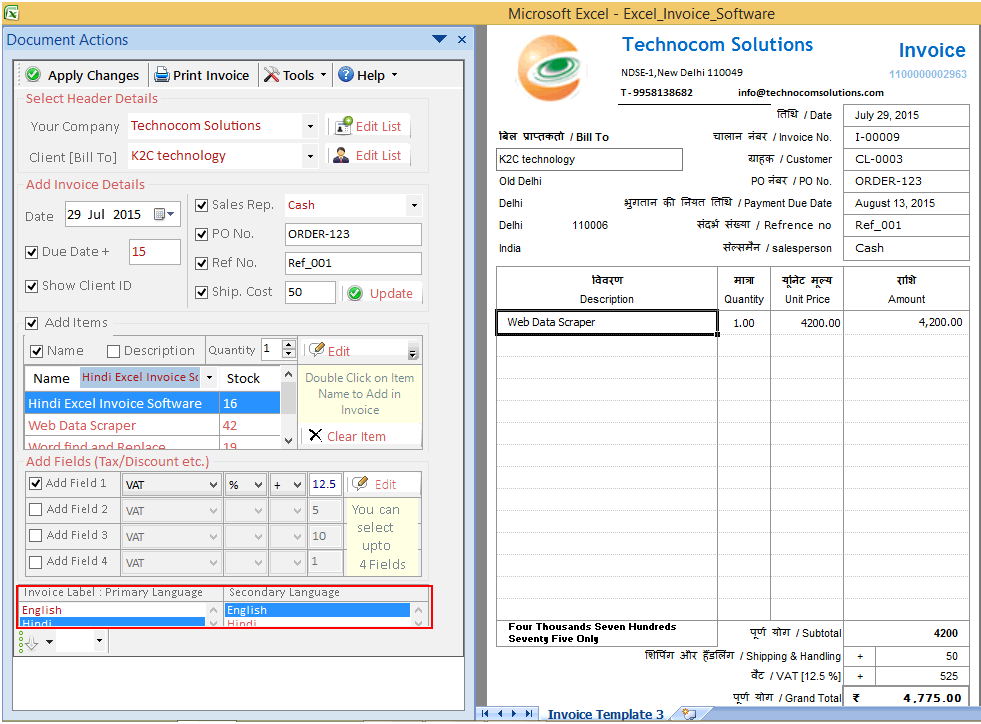
 -At last select the Invoice language according to the need of the client.
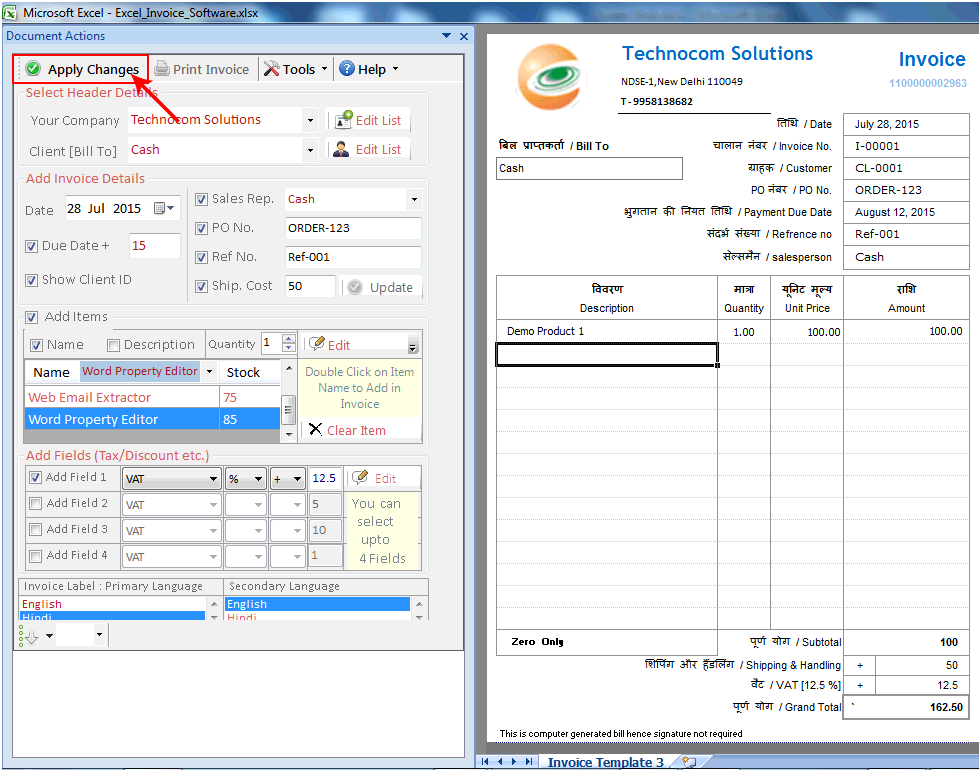
 Now click on ‘Apply changes’ command to execute the changes user has
made.
Now click on ‘Apply changes’ command to execute the changes user has
made.
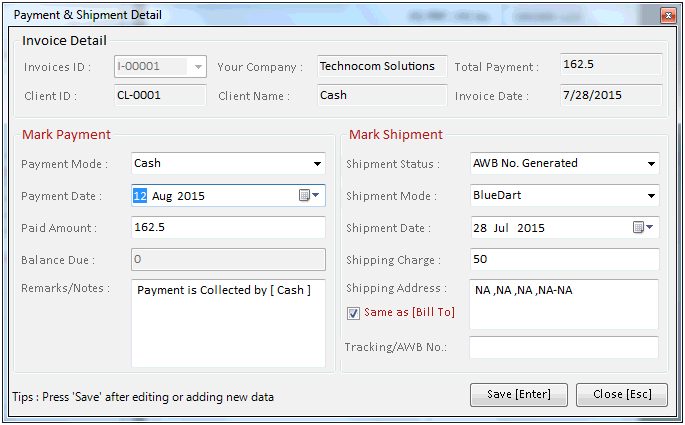
 Now when user will click on ‘Print Invoice’ a new window will pop up for payment &
shipment details. This option is provided if the user wants to make some last time details.
Now when user will click on ‘Print Invoice’ a new window will pop up for payment &
shipment details. This option is provided if the user wants to make some last time details.
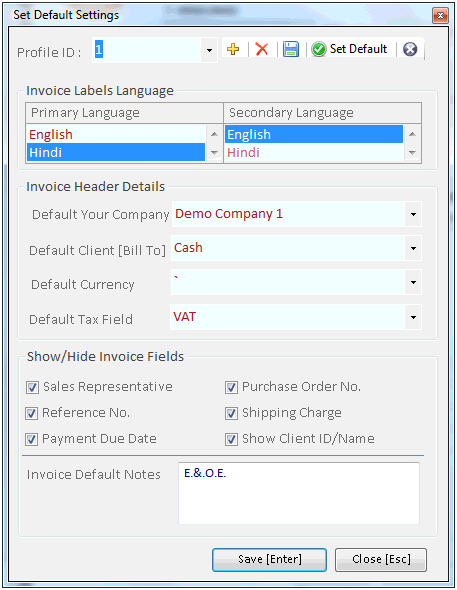
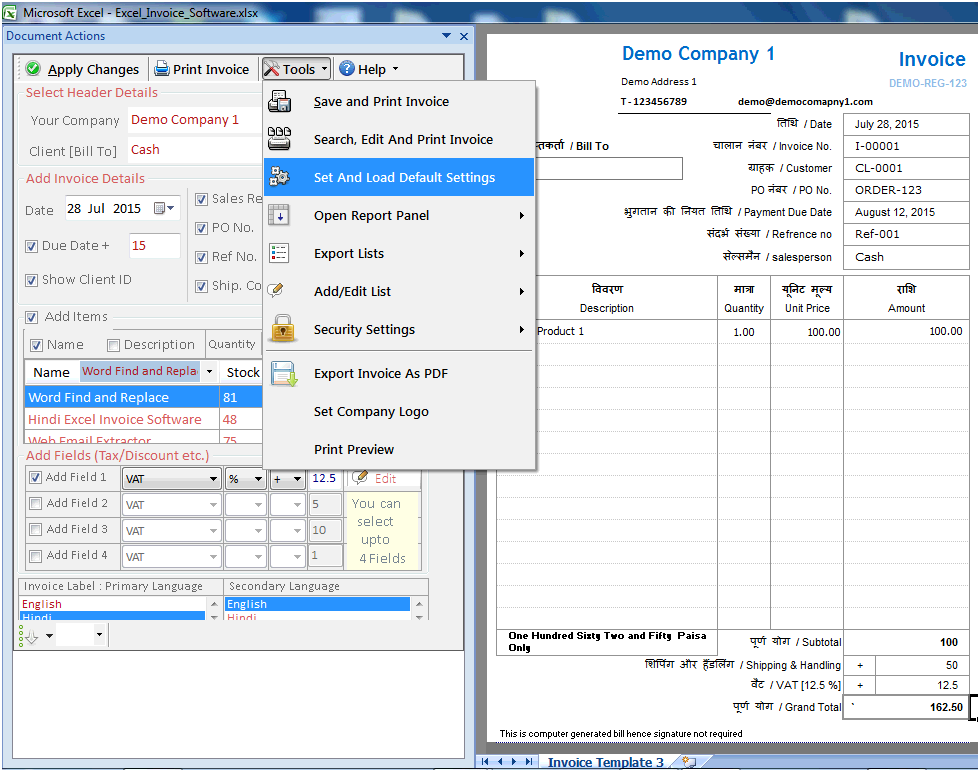 Set-up a Default setting that will always appear whenever you will open the software. For e.g.
Language, Currency, Tax field and all the other things.
Set-up a Default setting that will always appear whenever you will open the software. For e.g.
Language, Currency, Tax field and all the other things.
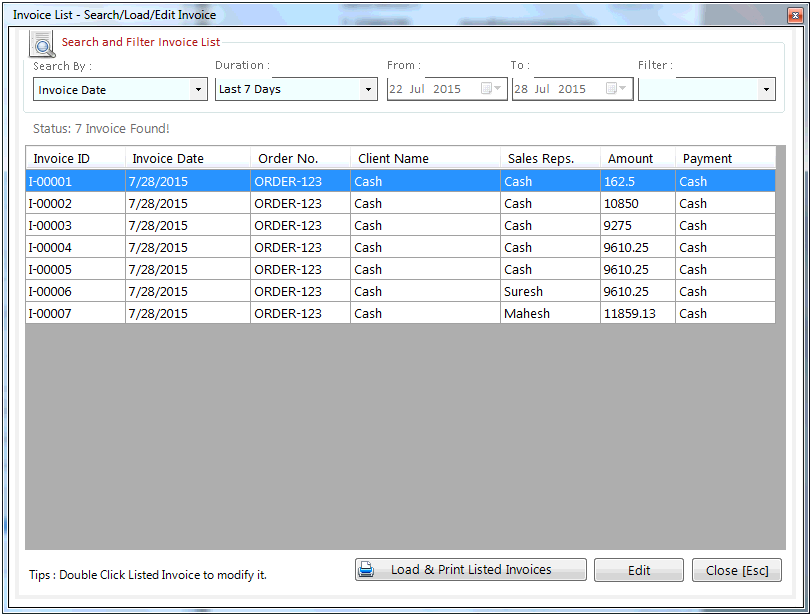
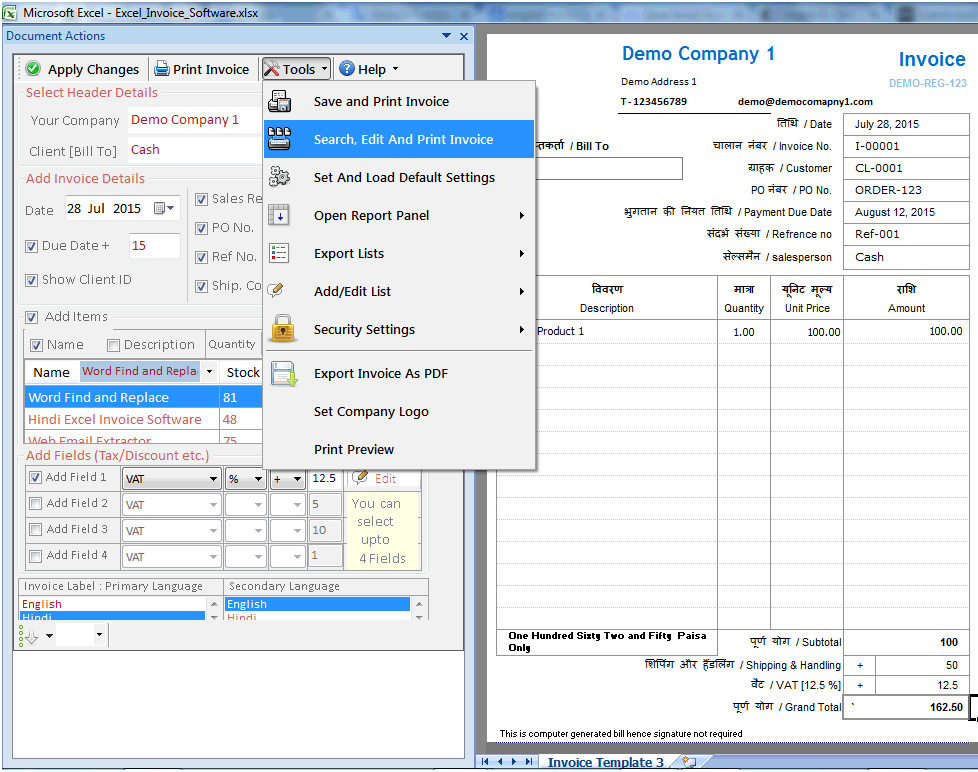 You will see a window will come on your screen with records of invoices you have made.
Choose invoice in which you want to make changes.
You will see a window will come on your screen with records of invoices you have made.
Choose invoice in which you want to make changes.
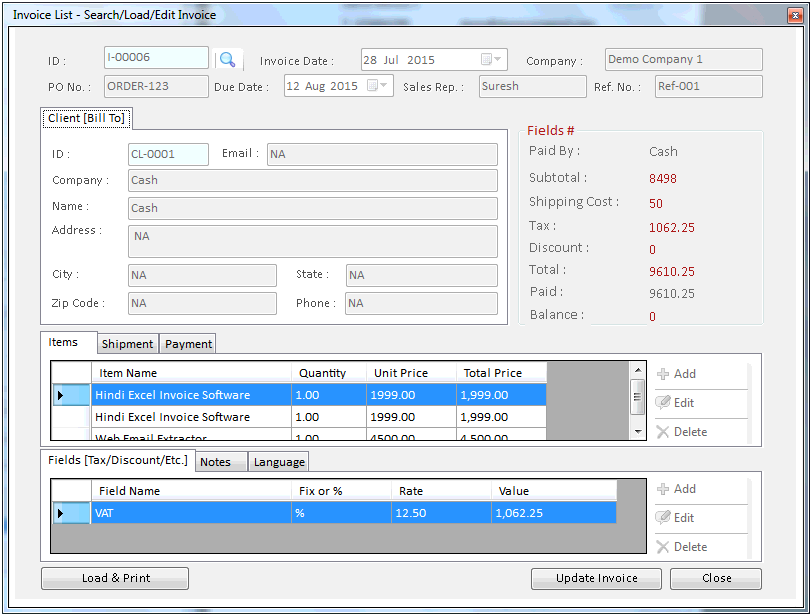
 The selected invoice will come on your screen and you can make changes in that like Items, shipment,
payment, Fields (Taxes & Discounts), Notes & languages.
The selected invoice will come on your screen and you can make changes in that like Items, shipment,
payment, Fields (Taxes & Discounts), Notes & languages.
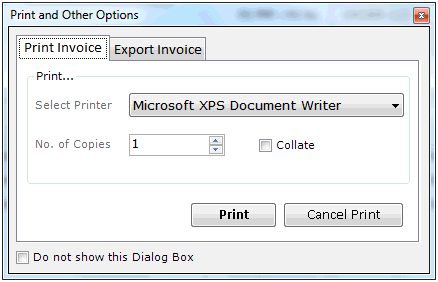
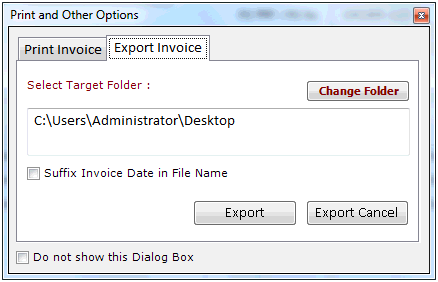
 After all the editing is finished click on ‘Update’ and then on ‘Load &
Print’. You can either print the invoice by clicking on ‘Print’ or you can click
on ‘Export Invoice’ to save it as PDF.
After all the editing is finished click on ‘Update’ and then on ‘Load &
Print’. You can either print the invoice by clicking on ‘Print’ or you can click
on ‘Export Invoice’ to save it as PDF.
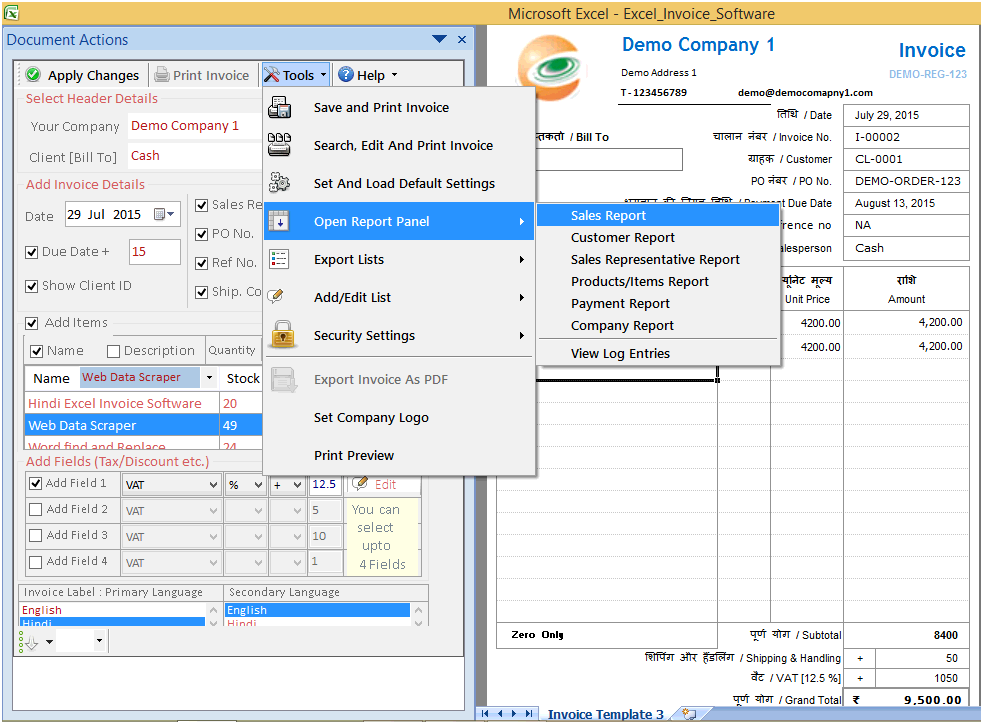
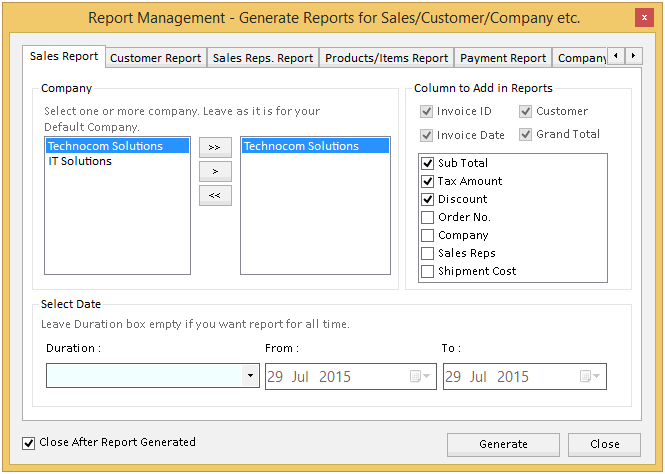
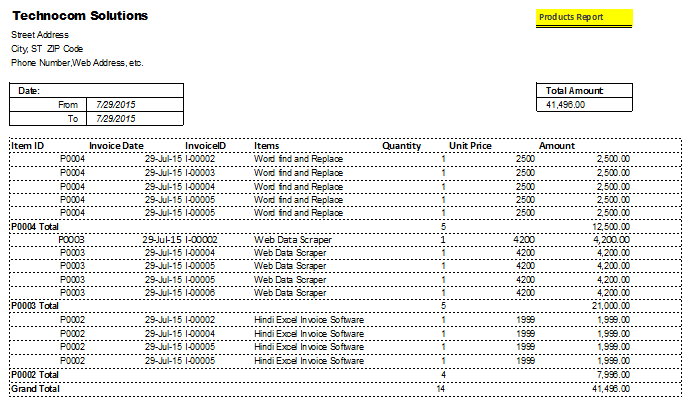
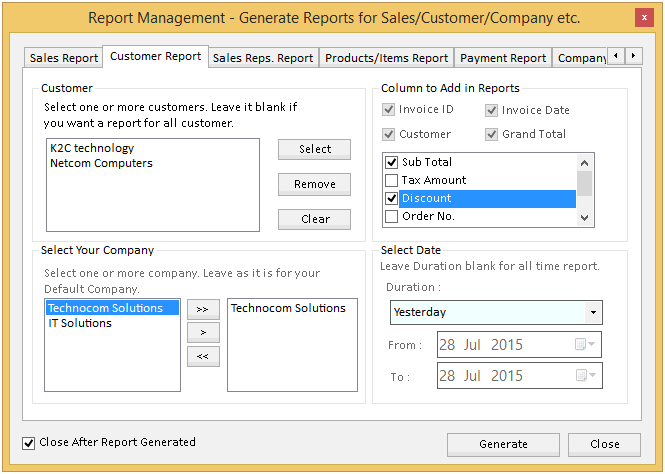
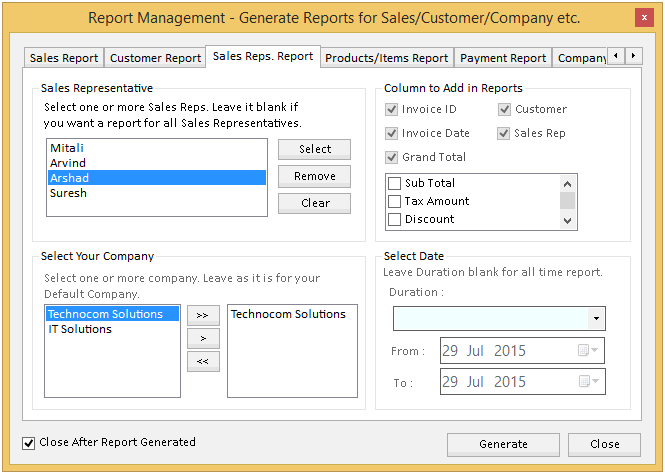
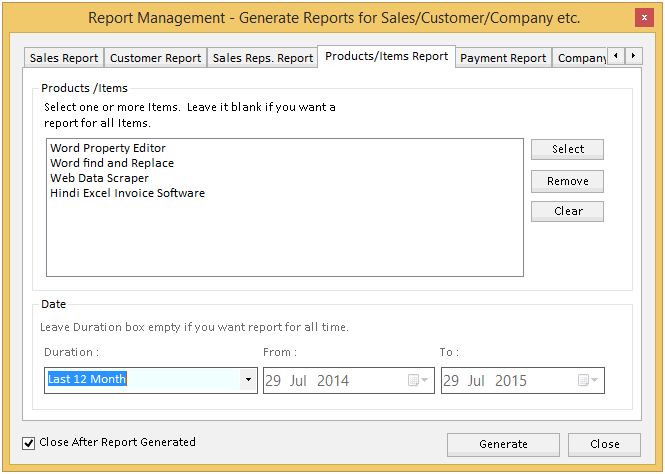
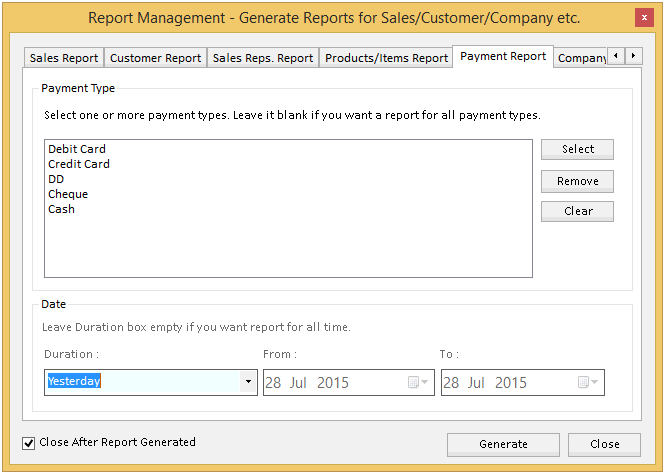
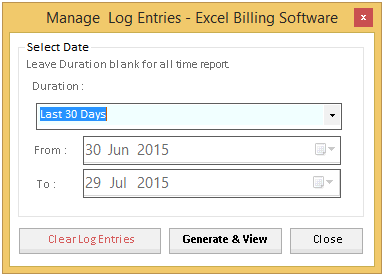
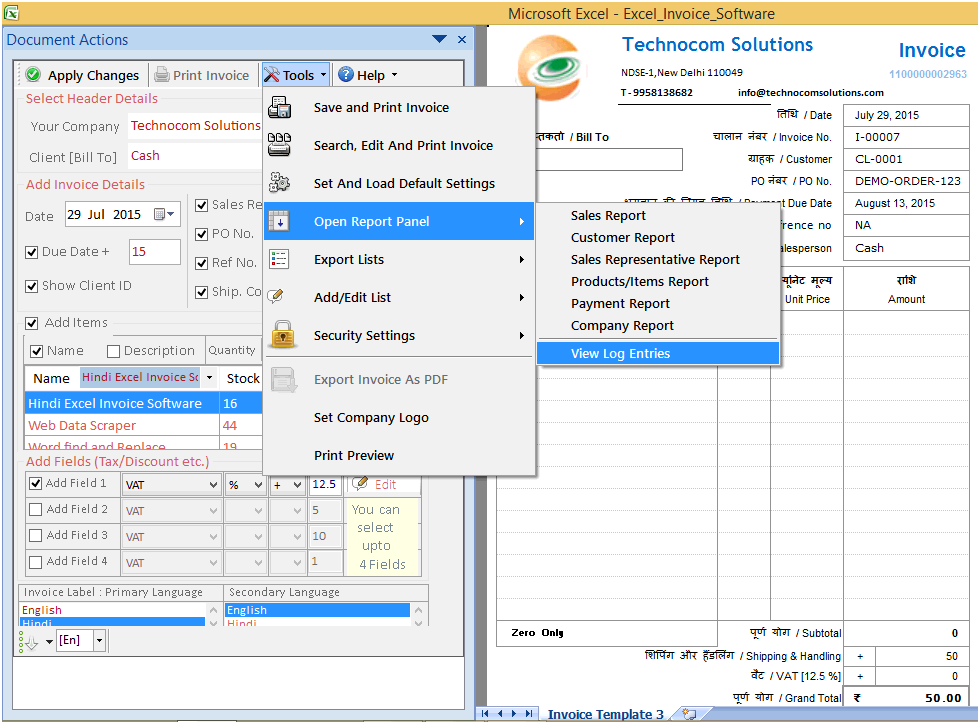 To see details of log entries user has to fill the duration along with the dates of those entries.
Then click on Generate & View to see.
To see details of log entries user has to fill the duration along with the dates of those entries.
Then click on Generate & View to see.
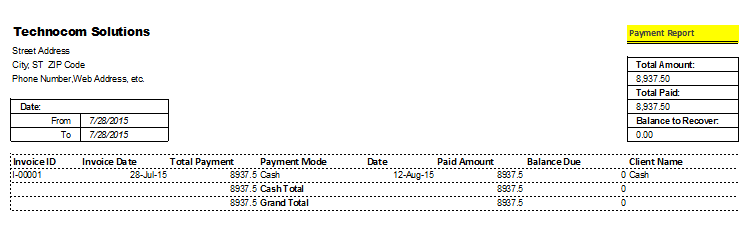
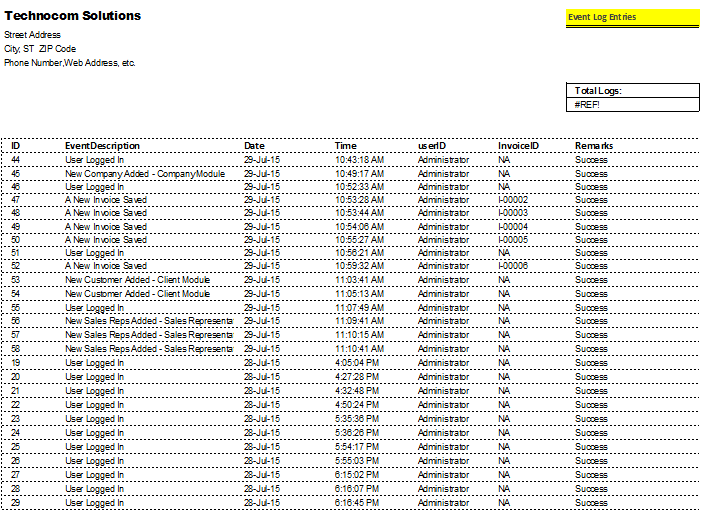
 The detailed report will show on your screen.
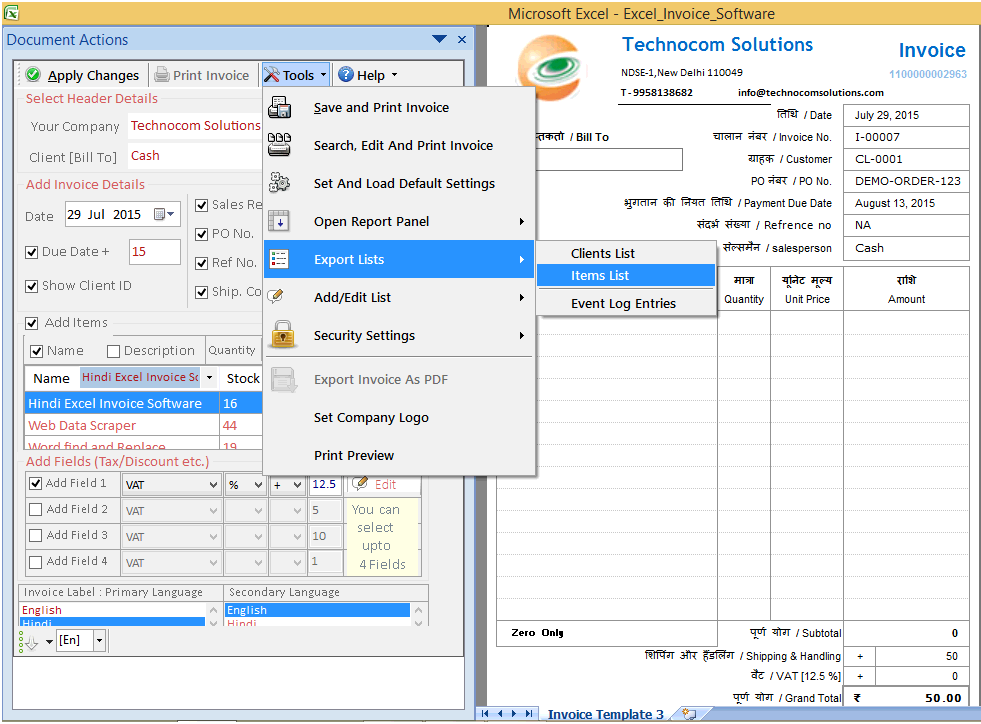
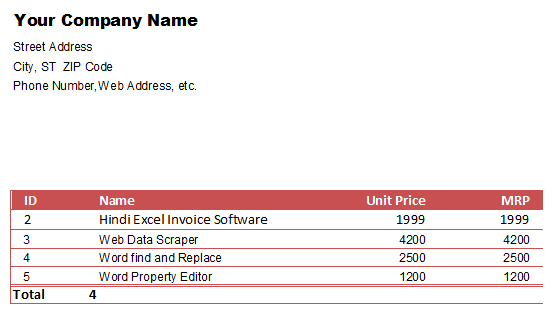
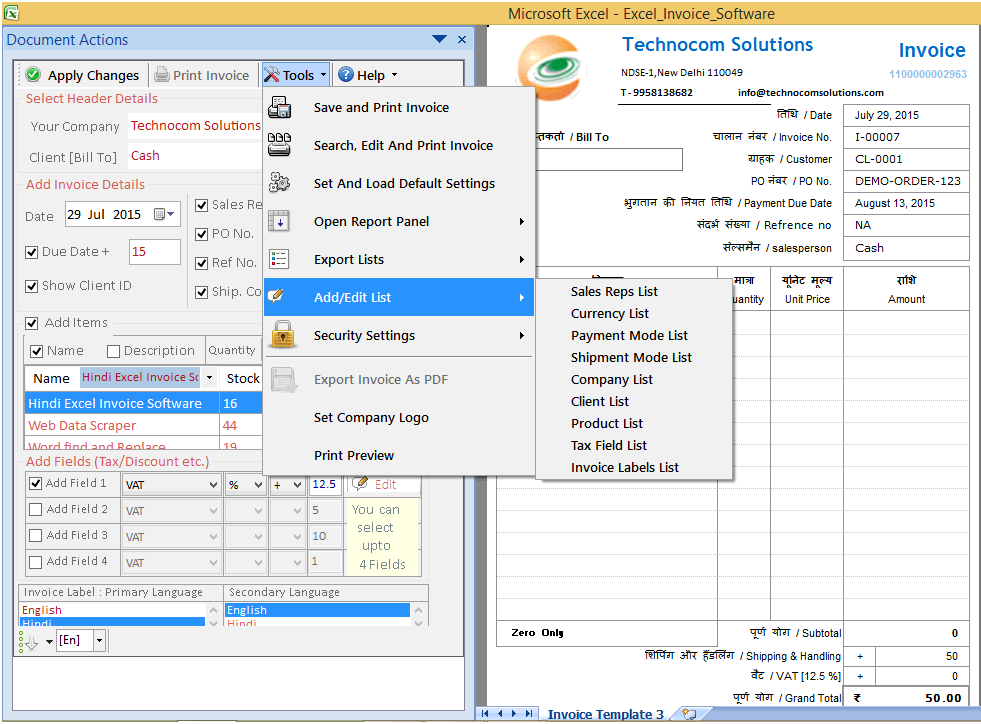
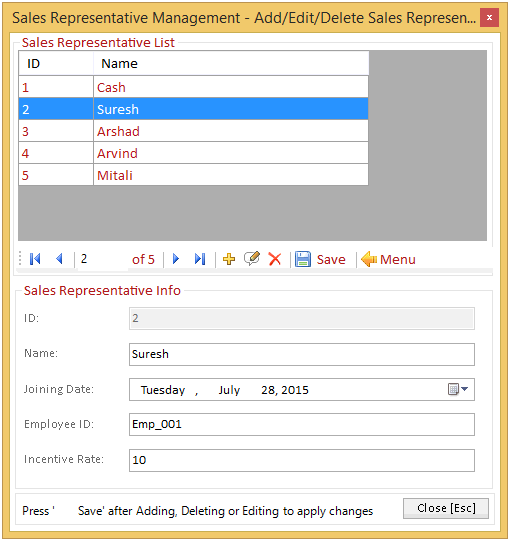
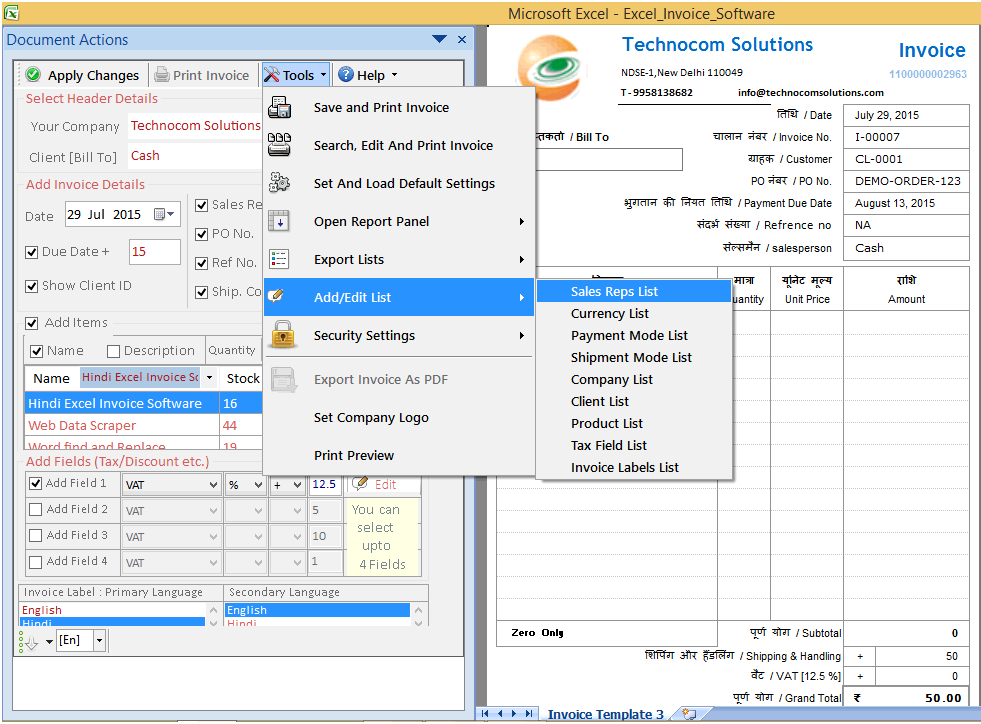 When user will click on that sub-option a new dialog box will appear where you can add or edit the
list of Sales representatives.
When user will click on that sub-option a new dialog box will appear where you can add or edit the
list of Sales representatives.
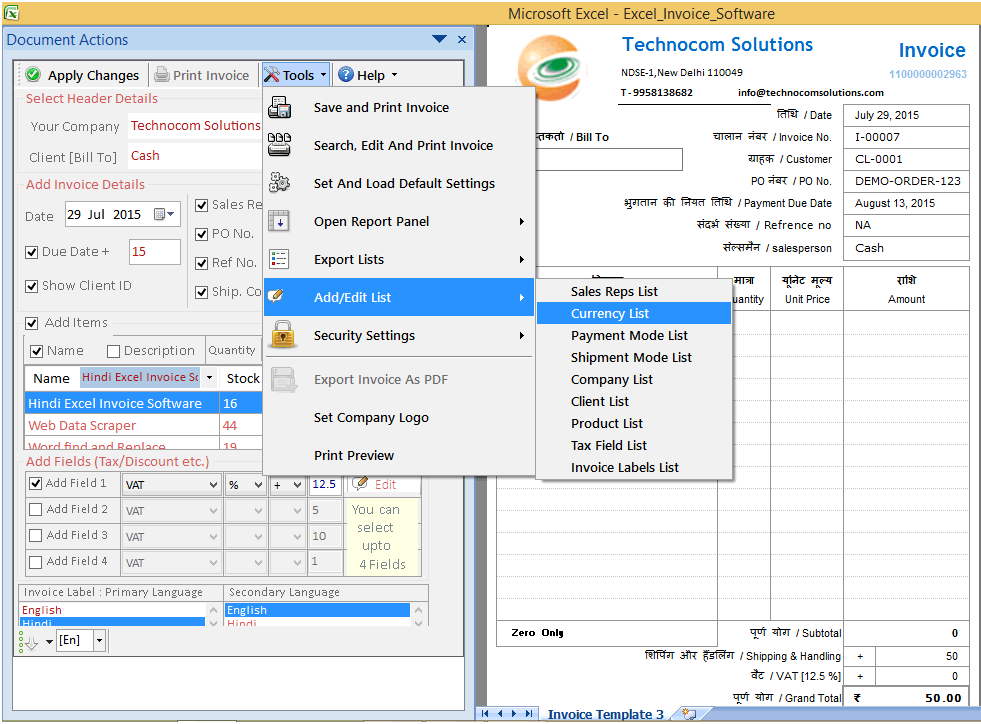 When user will click on that sub-option a new dialog box will appear where you can add or edit the
list of currency.
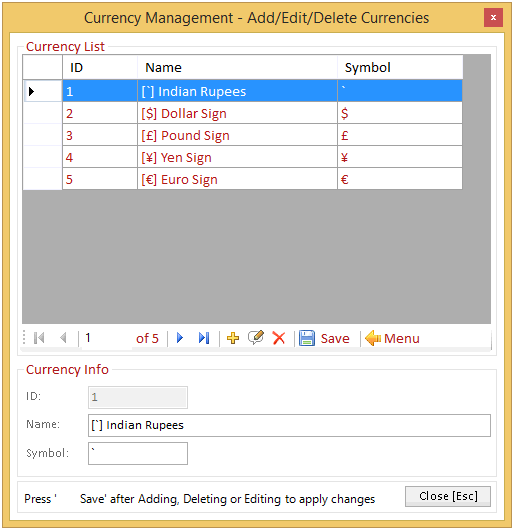
When user will click on that sub-option a new dialog box will appear where you can add or edit the
list of currency.
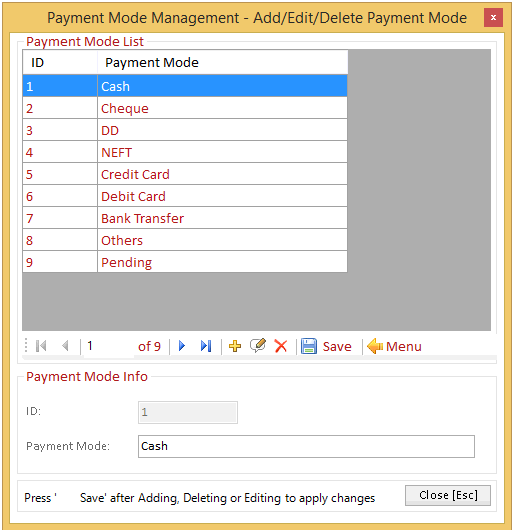
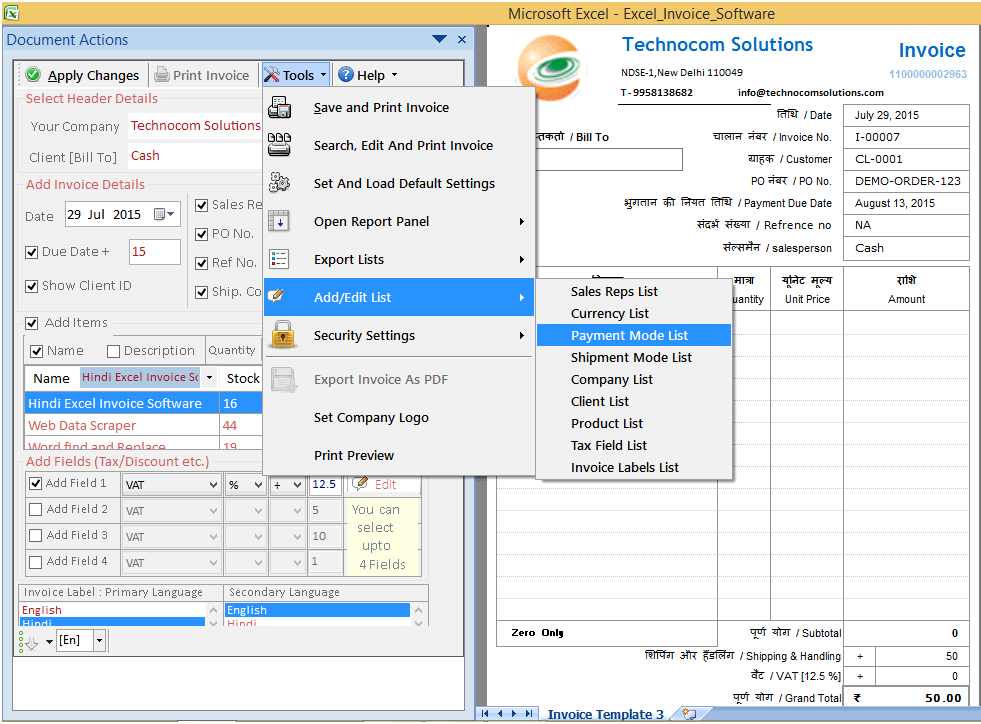 When user will click on that sub-option a new dialog box will appear where you can add or edit the
list of Payment mode.
When user will click on that sub-option a new dialog box will appear where you can add or edit the
list of Payment mode.
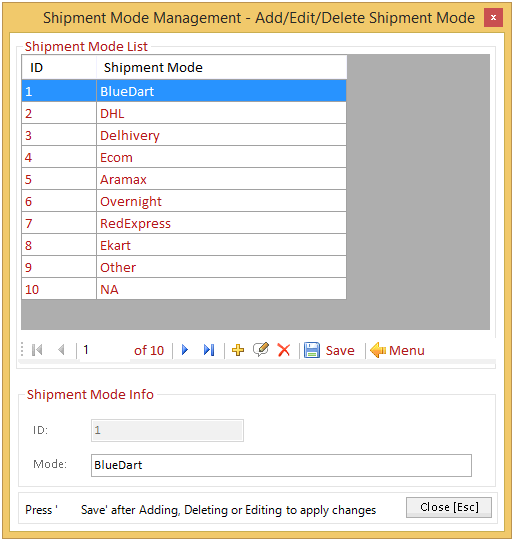
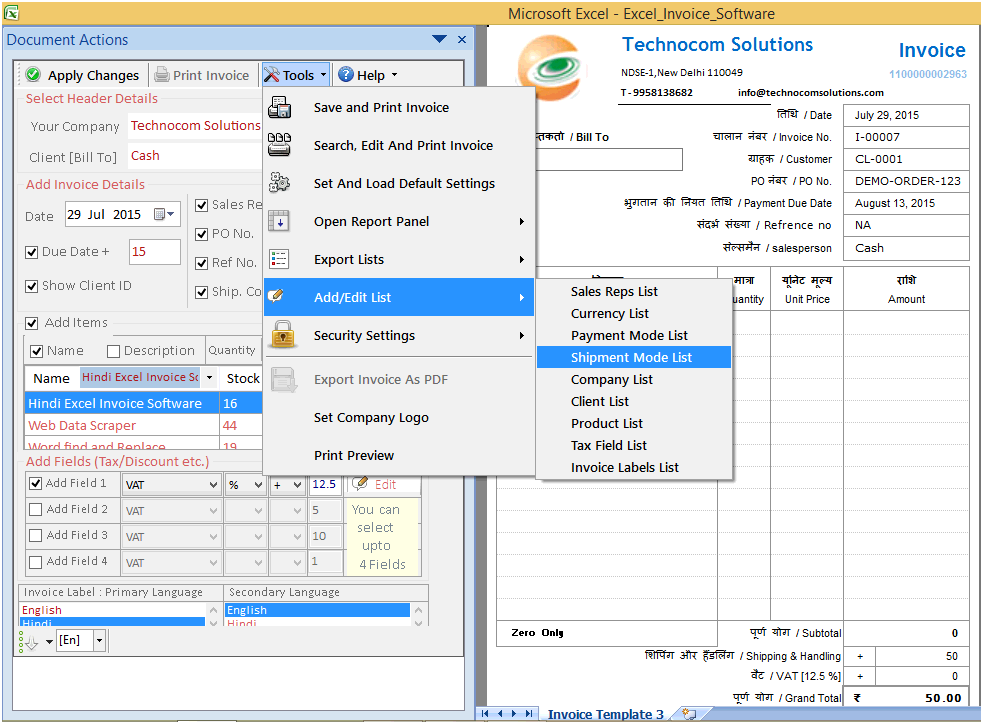 When user will click on that sub-option a new dialog box will appear where you can add or edit the
list of Shipment mode.
When user will click on that sub-option a new dialog box will appear where you can add or edit the
list of Shipment mode.
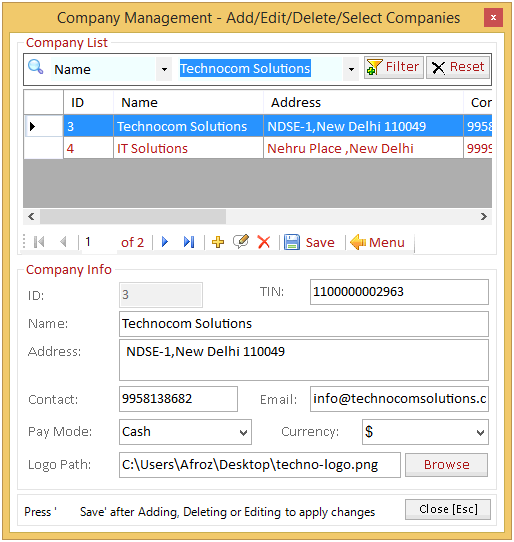
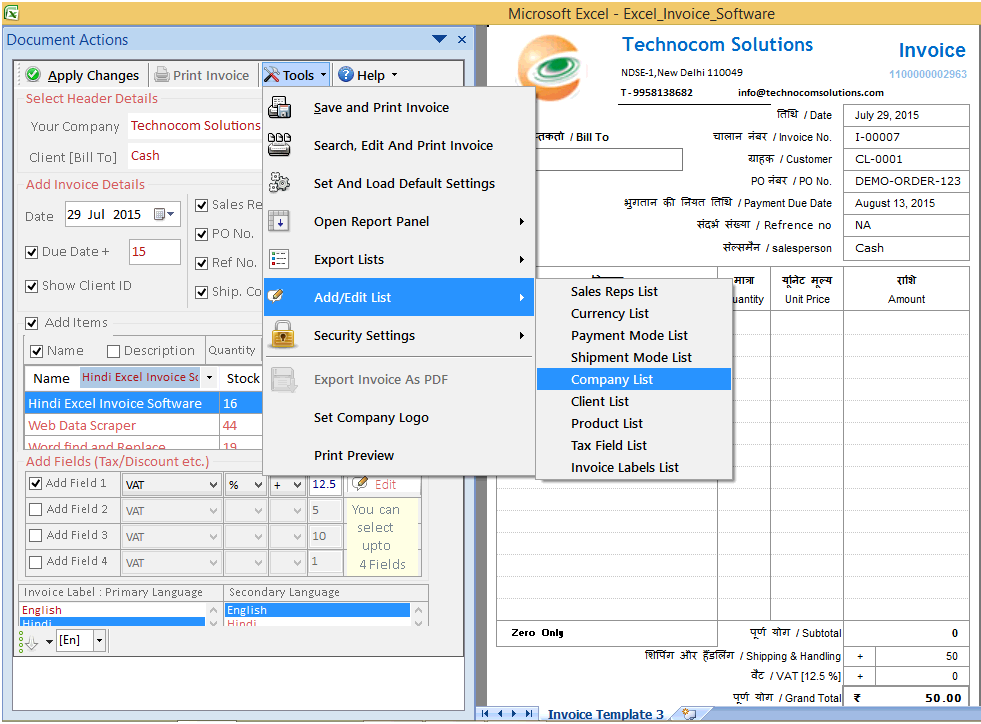 When user will click on that sub-option a new dialog box will appear where you can add or edit the
list of Company.
When user will click on that sub-option a new dialog box will appear where you can add or edit the
list of Company.
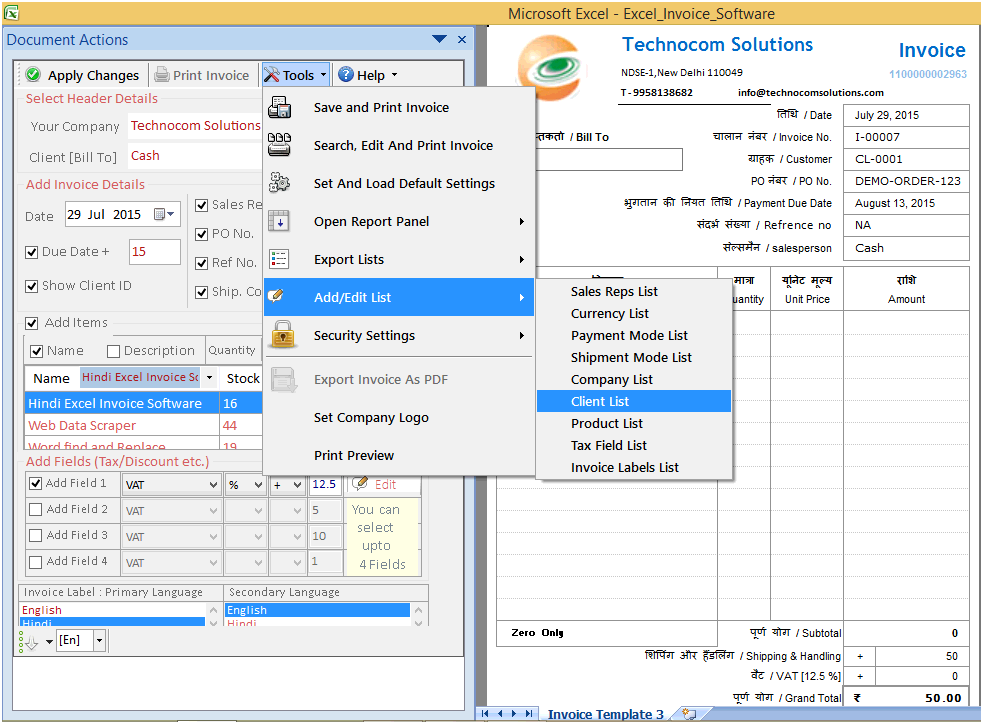 When user will click on that sub-option a new dialog box will appear where you can add or edit the
list of Clients.
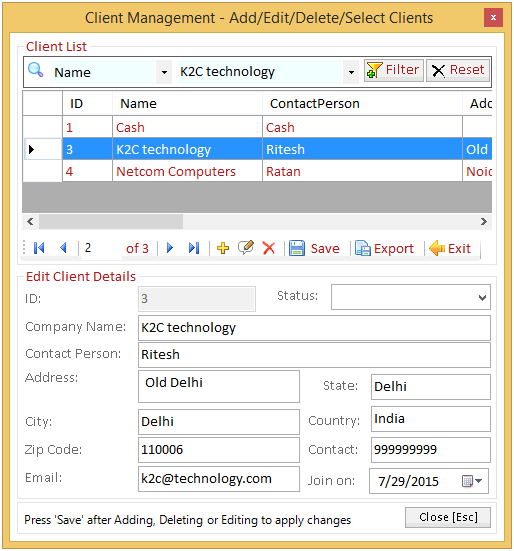
When user will click on that sub-option a new dialog box will appear where you can add or edit the
list of Clients.
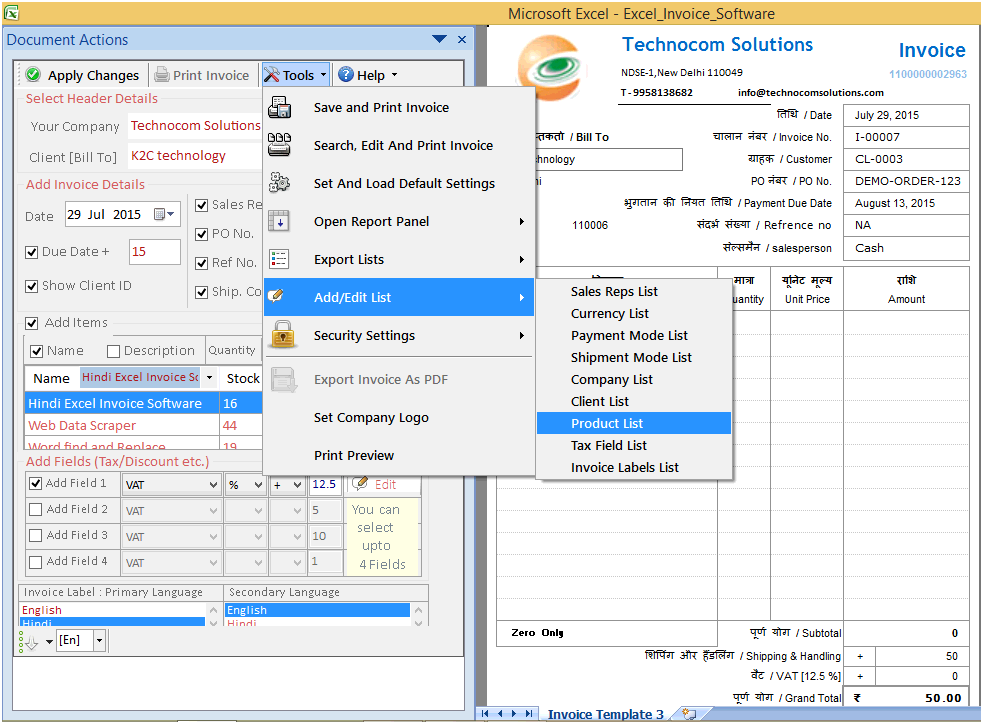 When user will click on that sub-option a new dialog box will appear where you can add or edit the
list of Product.
When user will click on that sub-option a new dialog box will appear where you can add or edit the
list of Product.
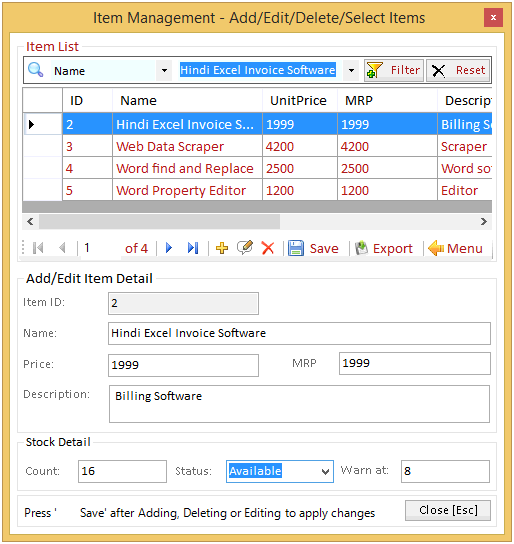
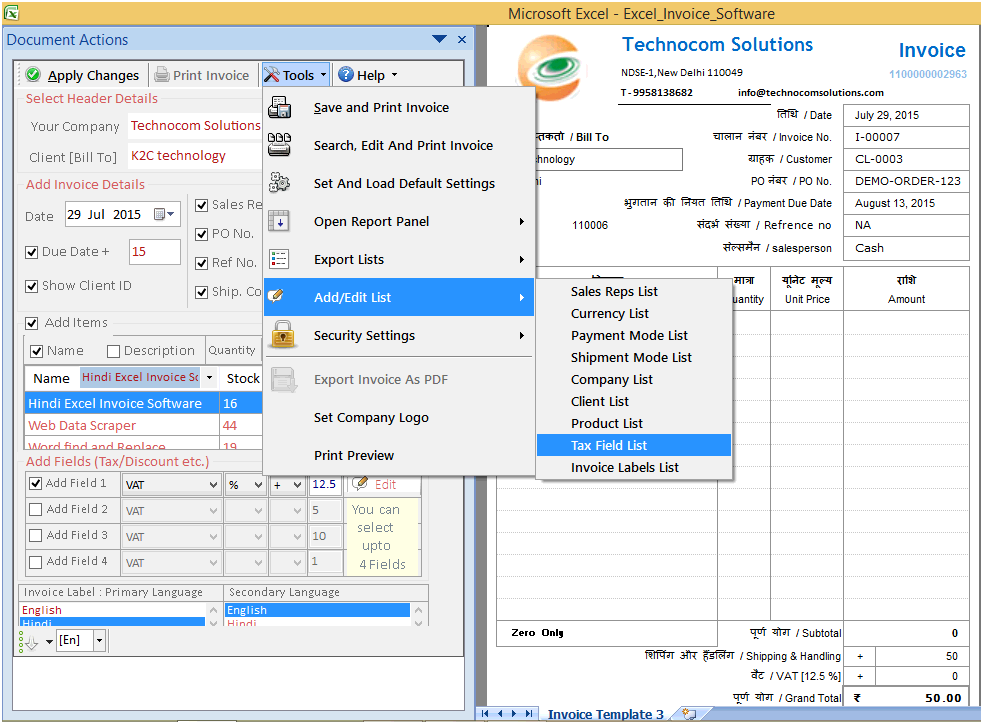 When user will click on that sub-option a new dialog box will appear where you can add or edit the
list of Tax mode.
When user will click on that sub-option a new dialog box will appear where you can add or edit the
list of Tax mode.
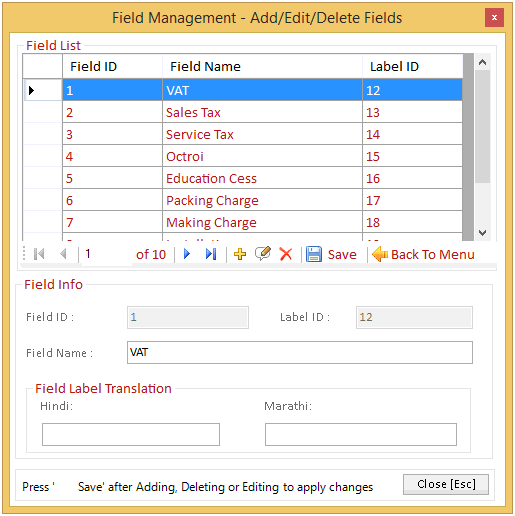
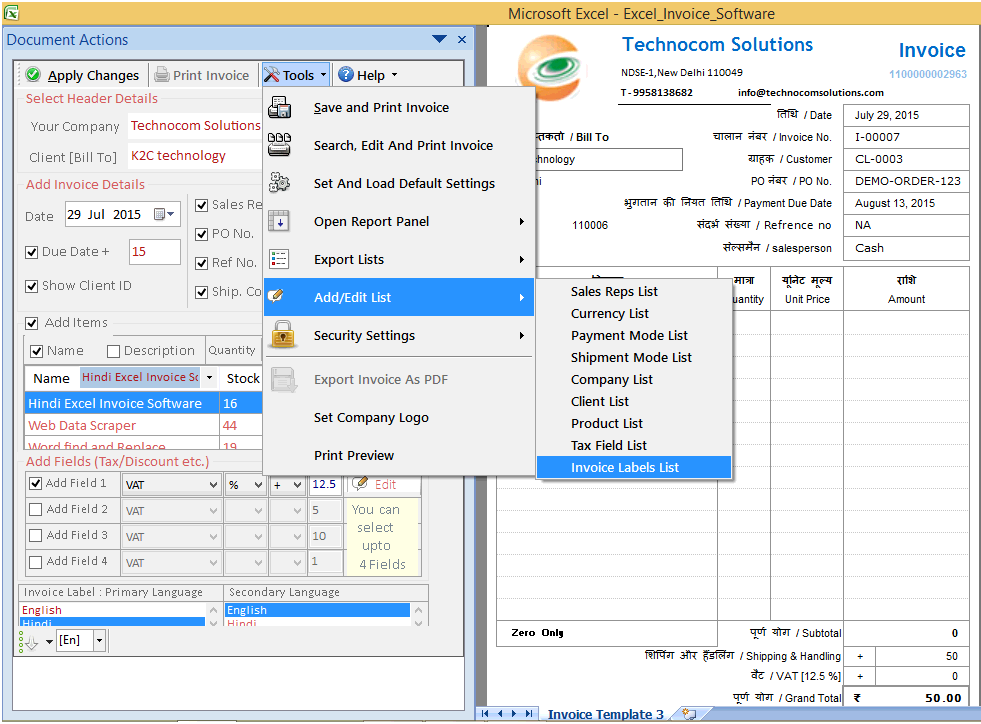 When user will click on that sub-option a new dialog box will appear where you can add or edit the
list of Invoice label.
When user will click on that sub-option a new dialog box will appear where you can add or edit the
list of Invoice label.
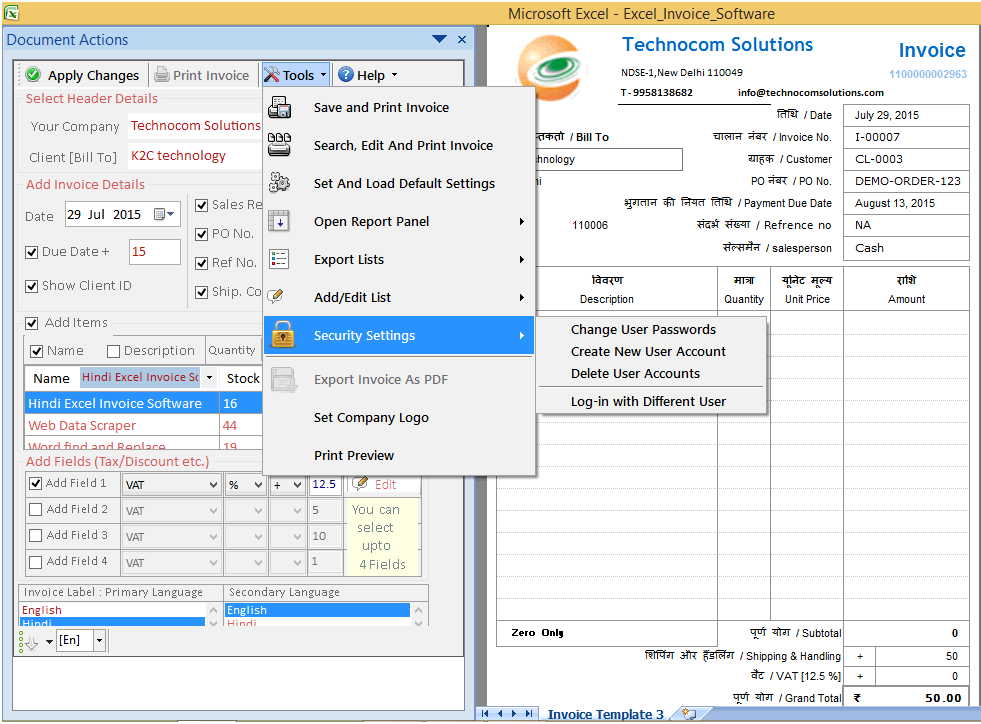
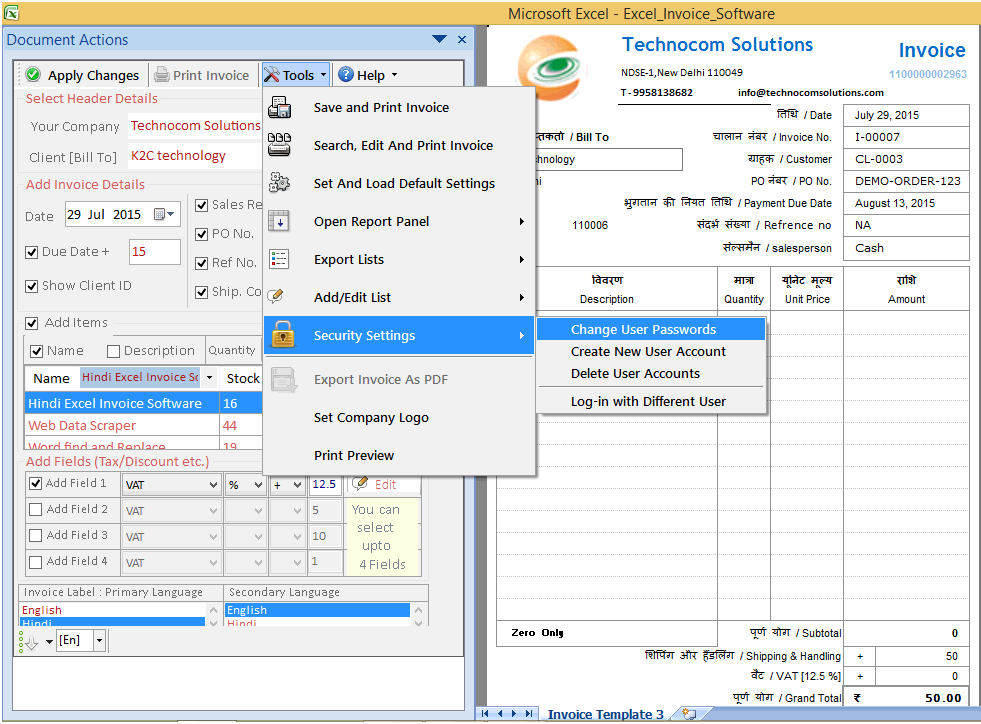 When user will click on this sub-option a new dialog box will appear. Here user can change password.
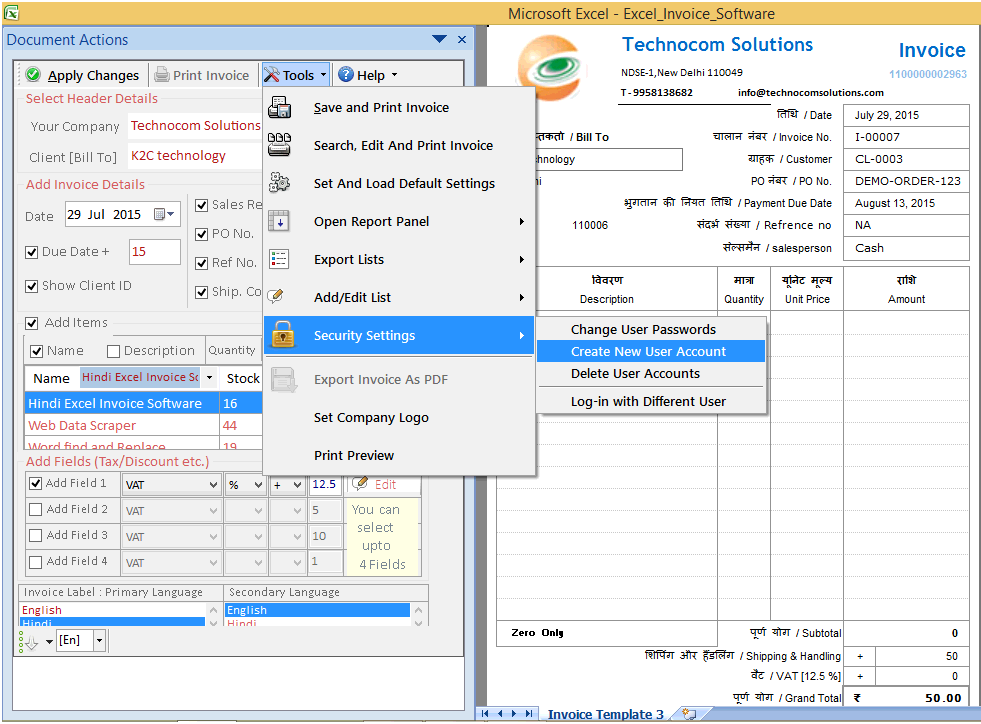 After clicking on the sub-option a dialog box will appear where user has to insert new user’s
details. Remember that you need to the assign the level of access this user can go.
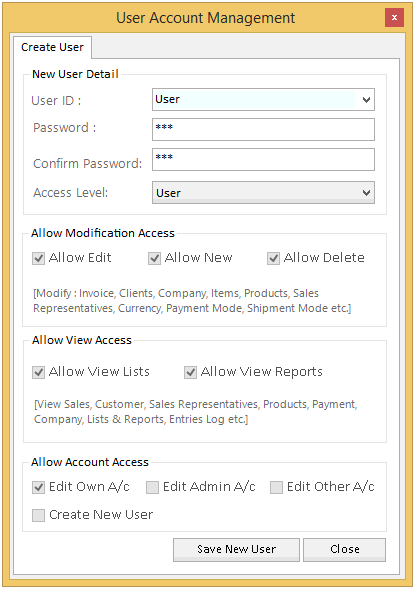
After clicking on the sub-option a dialog box will appear where user has to insert new user’s
details. Remember that you need to the assign the level of access this user can go.
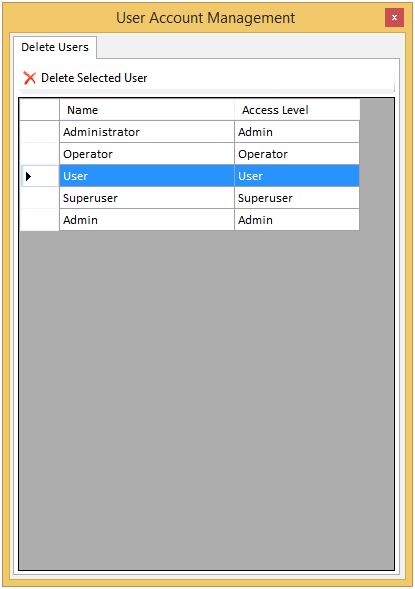
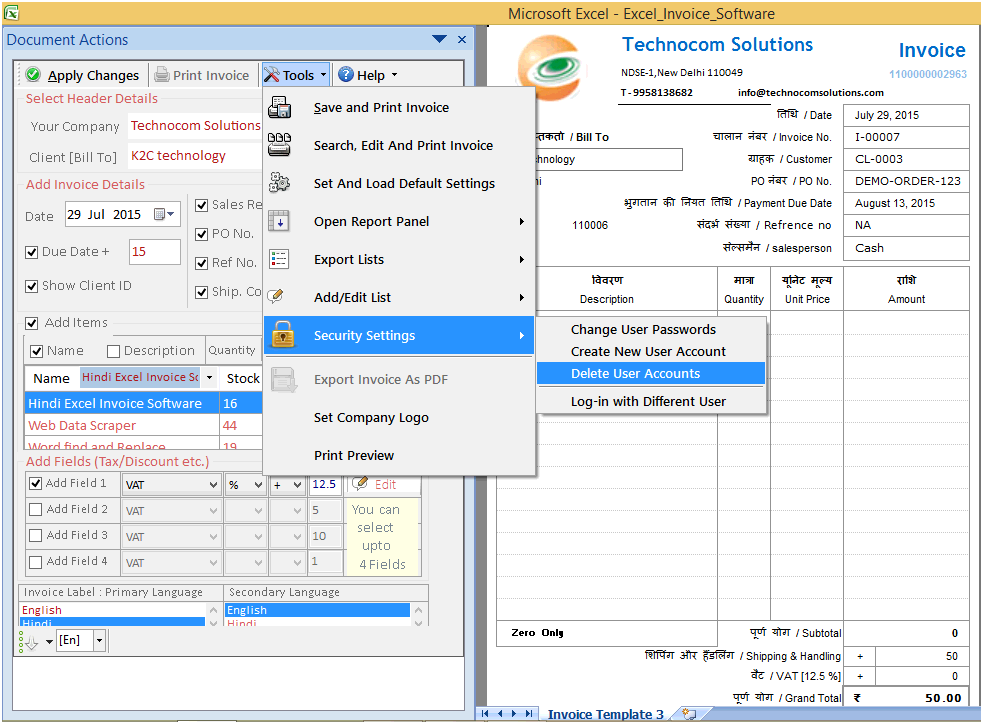 When user will click on that sub-option a new dialog box will appear with the list of user names. He
has to choose one and go to command ‘Delete Selected User’.
When user will click on that sub-option a new dialog box will appear with the list of user names. He
has to choose one and go to command ‘Delete Selected User’.
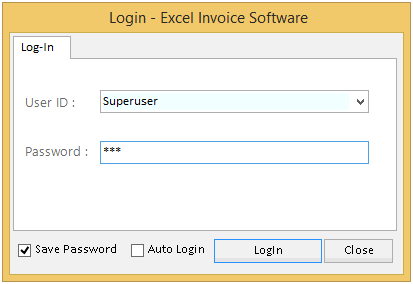
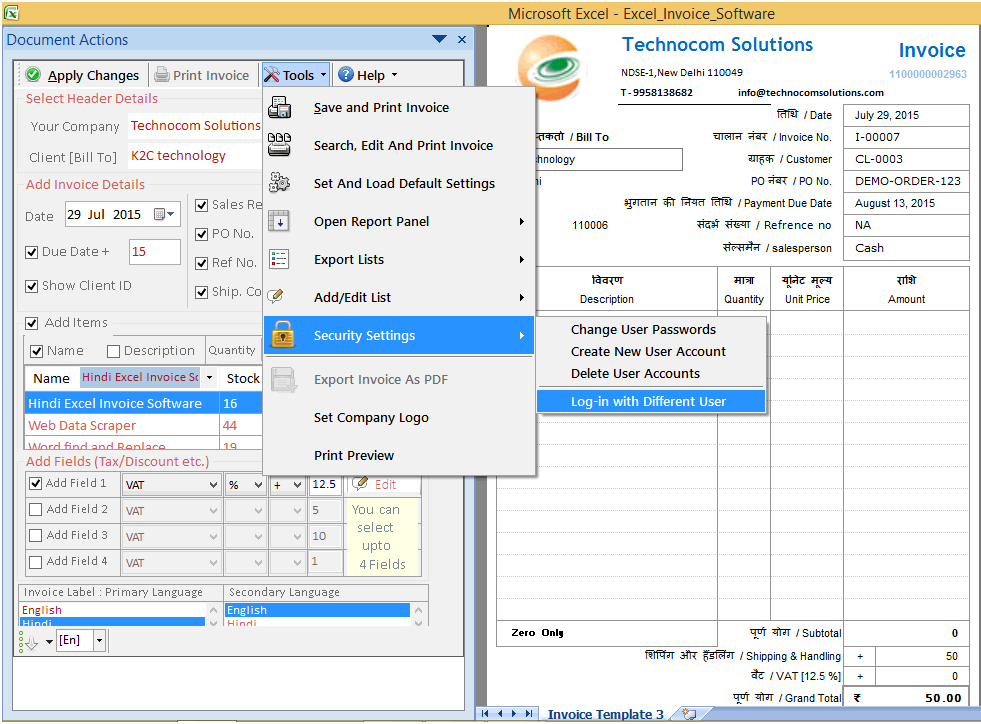 After user clicks on that sub-option he will see a new dialog-box on the screen. User has to log-in
with the new ID and password.
After user clicks on that sub-option he will see a new dialog-box on the screen. User has to log-in
with the new ID and password.
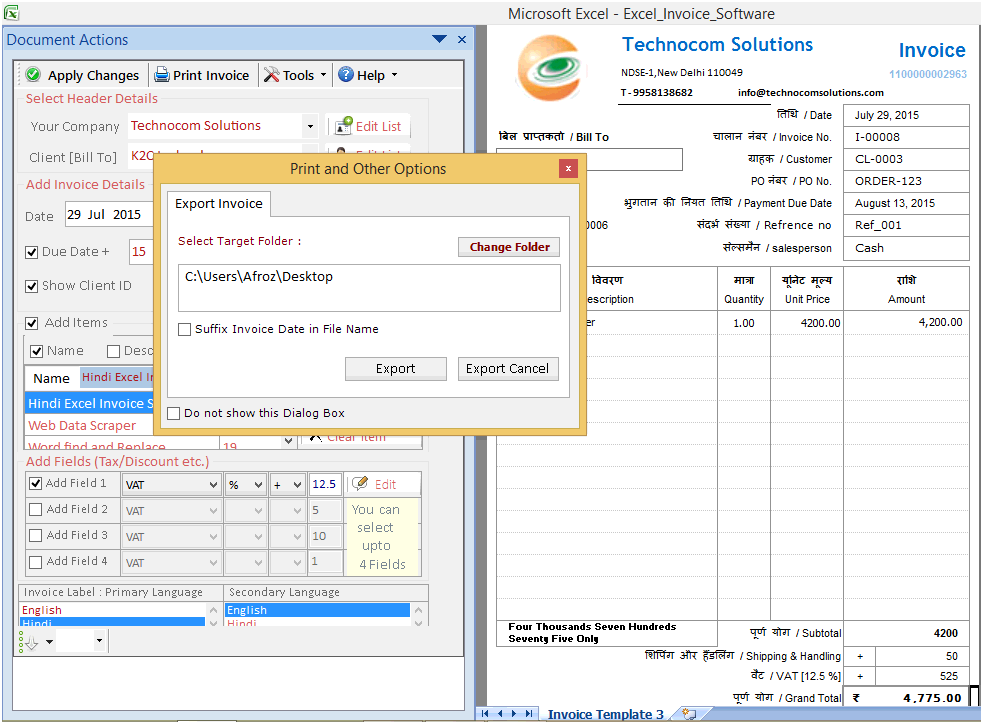
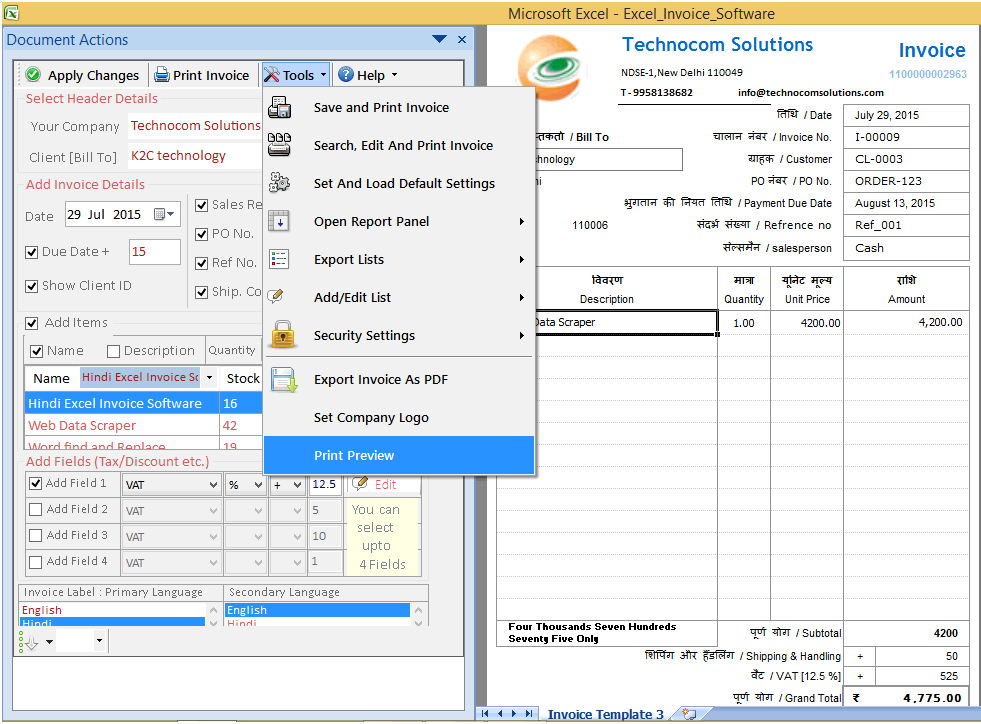
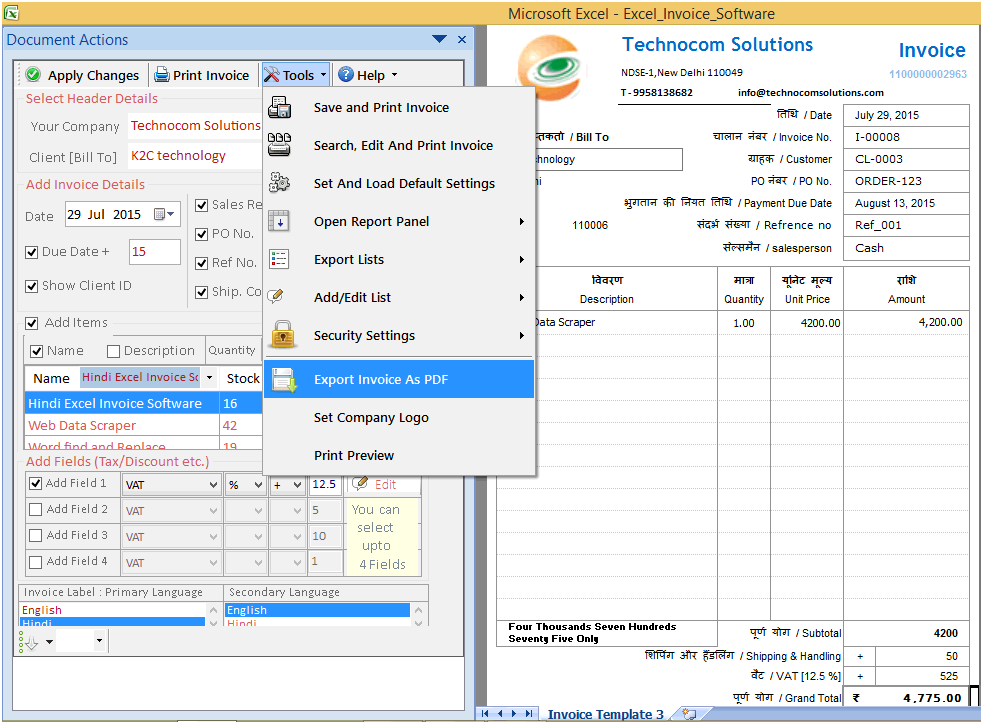 When user will click on the option a dialog will show on the screen. Here user has to select the
default folder where the converted PDF format will be saved. Then click on Export to begin.
When user will click on the option a dialog will show on the screen. Here user has to select the
default folder where the converted PDF format will be saved. Then click on Export to begin.
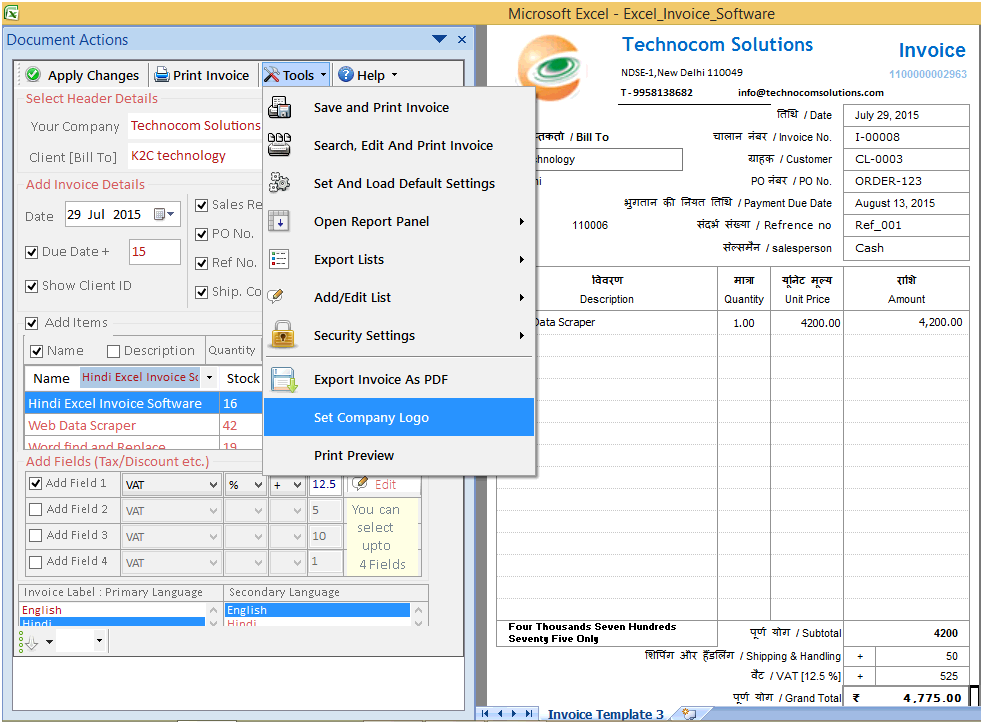 After user clicks on that command a dialog box will come on the screen. User has to click on command
‘Browse’ given adjacent to ‘Logo Path’ and
choose the logo from the folder where he has saved it.
After user clicks on that command a dialog box will come on the screen. User has to click on command
‘Browse’ given adjacent to ‘Logo Path’ and
choose the logo from the folder where he has saved it.
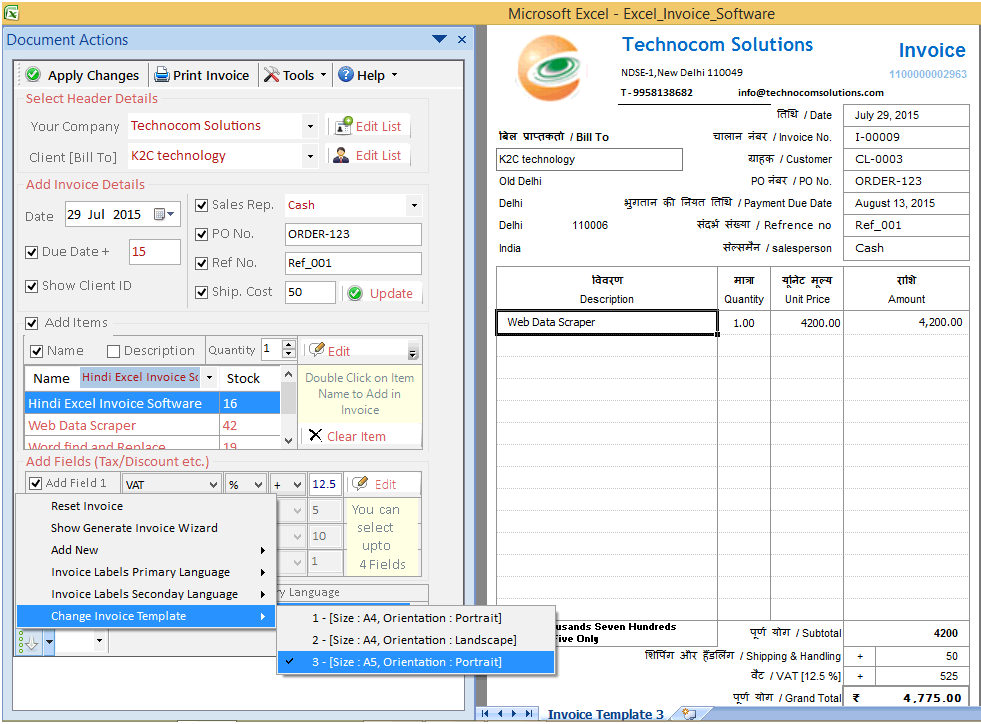
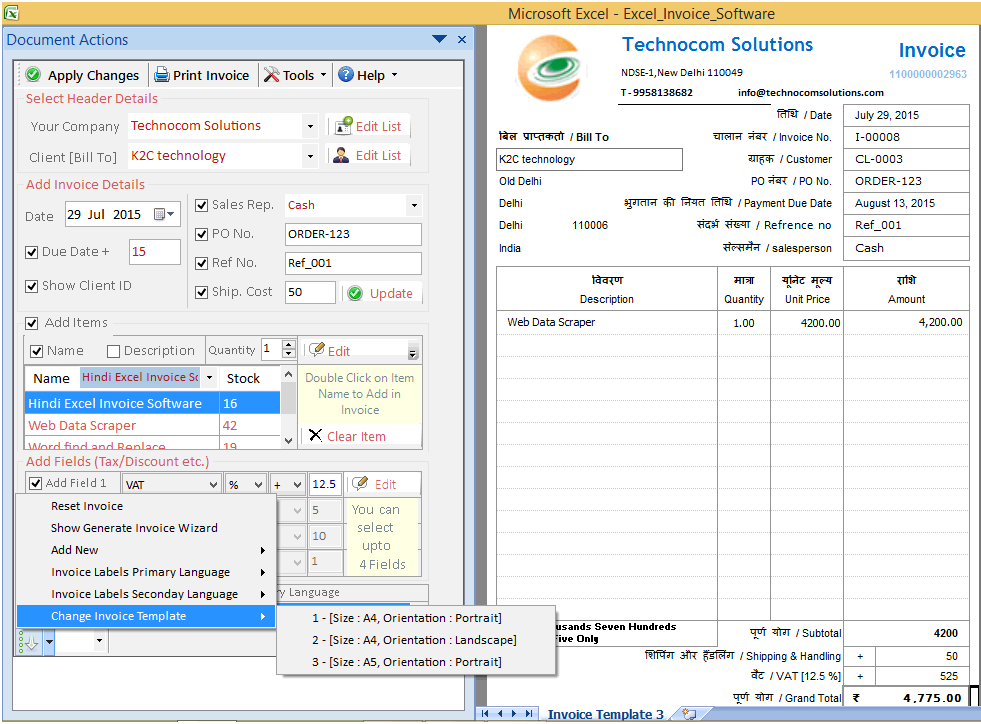 When user will click on that command they will see options appearing in which one would be
‘Change Invoice Template’. In this option there will be three sub
options-
-Size A-4 Orientation Portrait
-Size A-4 Orientation Landscape
-Size A-5 Orientation Portrait.
When user will click on that command they will see options appearing in which one would be
‘Change Invoice Template’. In this option there will be three sub
options-
-Size A-4 Orientation Portrait
-Size A-4 Orientation Landscape
-Size A-5 Orientation Portrait.
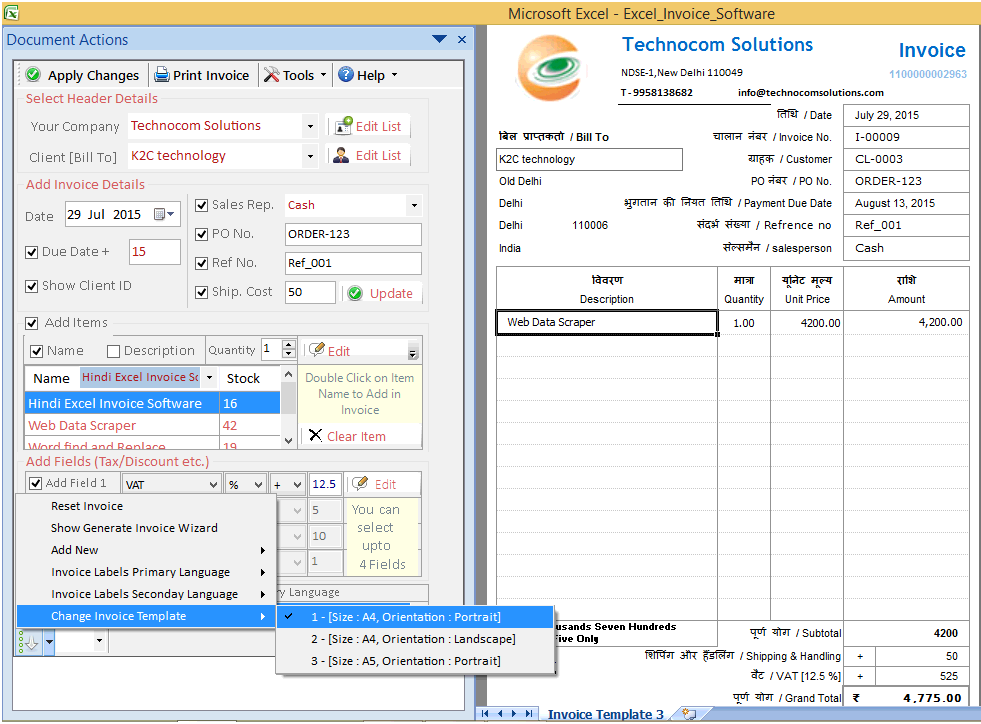
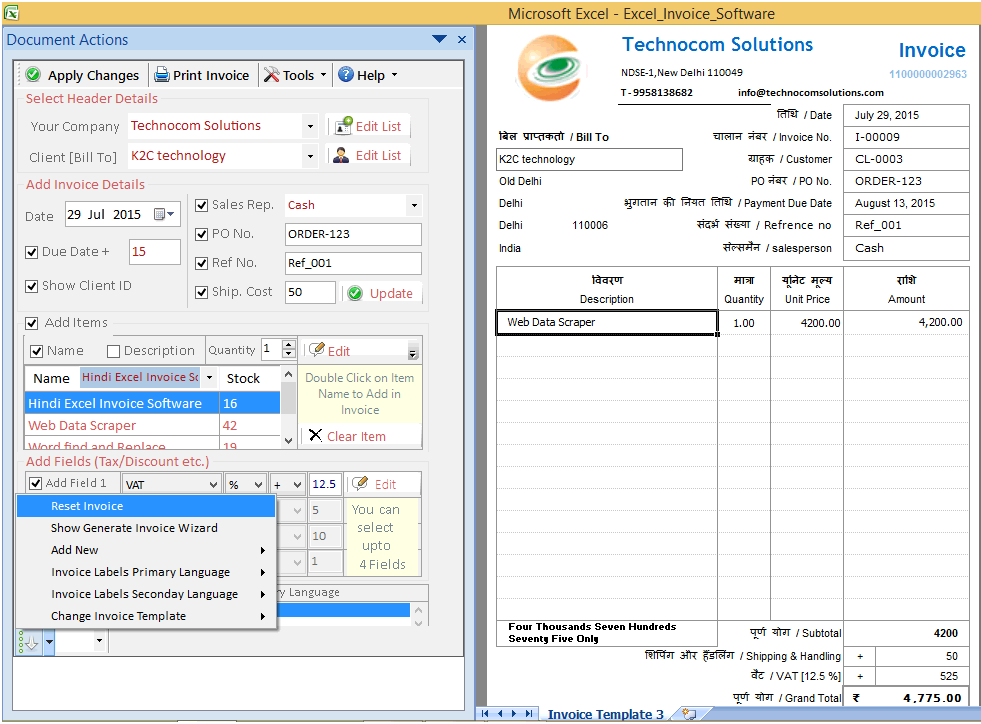
How to change Invoice template in Size A-4 Orientation Portrait? To change the Invoice template into Size A-4 Orientation Portrait user has to go to Status command given below in the left panel of the main screen. There he has to choose option ‘Change Invoice Template’ and then the sub-option Size A-4 Orientation Portrait. After user will click on sub-option ‘Size A-4 Orientation Portrait’ the invoice will appear like this.
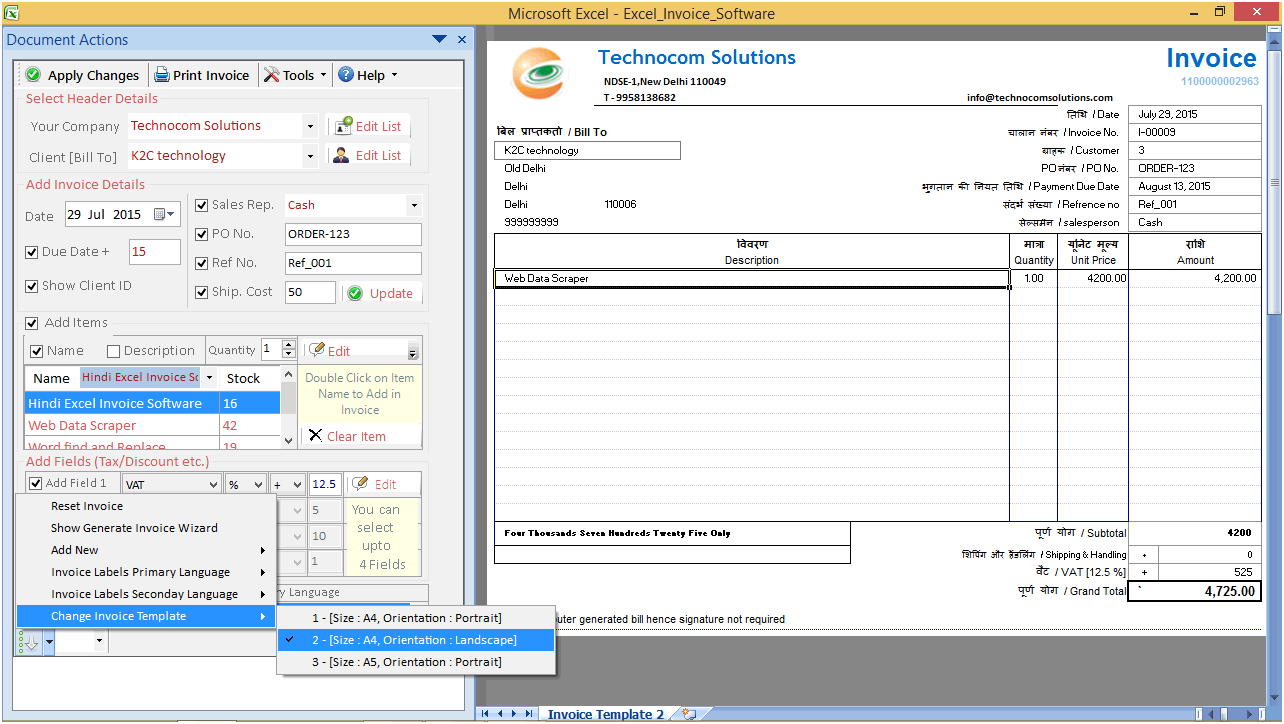
After user will click on sub-option ‘Size A-4 Orientation Landscape’ the invoices will appear like this.
 After user will click on sub-option ‘Size A-5 Orientation Portrait’ the
invoices will appear like this.
After user will click on sub-option ‘Size A-5 Orientation Portrait’ the
invoices will appear like this.
Copyright © 2019 Technocomsoft | Powered by Technocom Solutions
↑