Technocom Soft

Word To Image Converter

How to convert word file to jpg image?

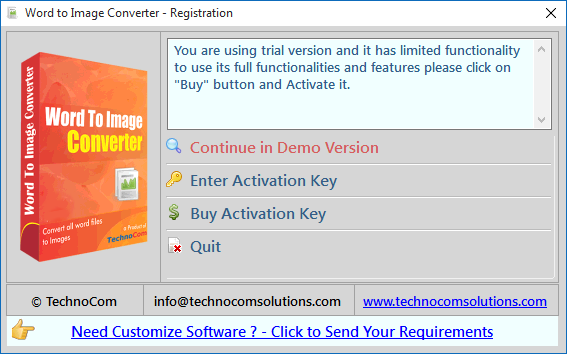
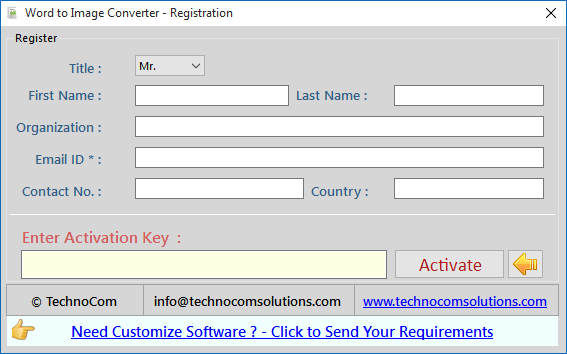
Register: To register the "Word To Image Converter" click on the "Enter Activation Key" Button and fill the Registration Detail with the Activation Code. Buy : You have to Buy "Word To Image Converter" to get Activation Code. You Can Buy it From our Site by Clicking on "Buy Activation Key" button. Try Demo: You can use demo version of "Word To Image Converter" by clicking on "Continue in Demo Version" Button.
registration registration
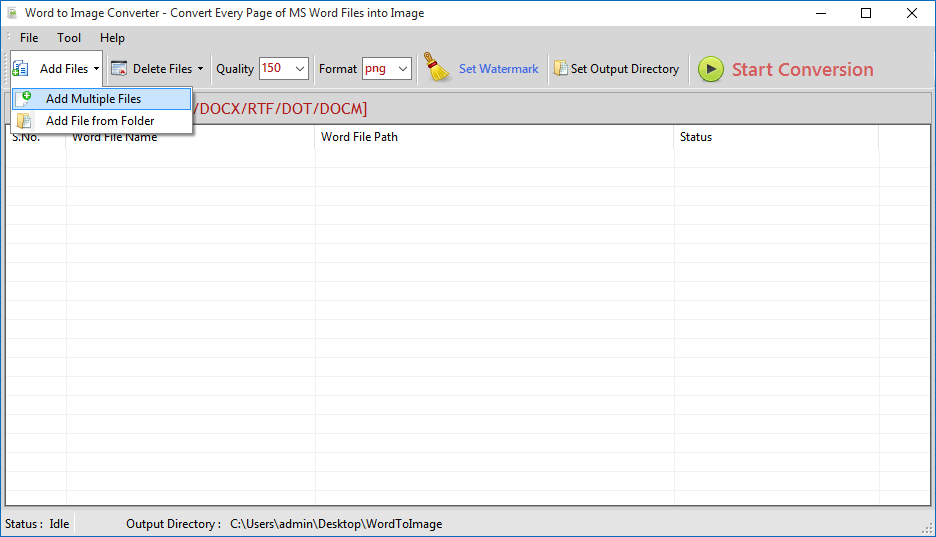
  • Run this software and add Word files( .doc, .docx, .rtf).
  • Add Microsoft Word files( .doc, .docx, .rtf) by click "Add Files" button. Then click on Add Multiple Files button.
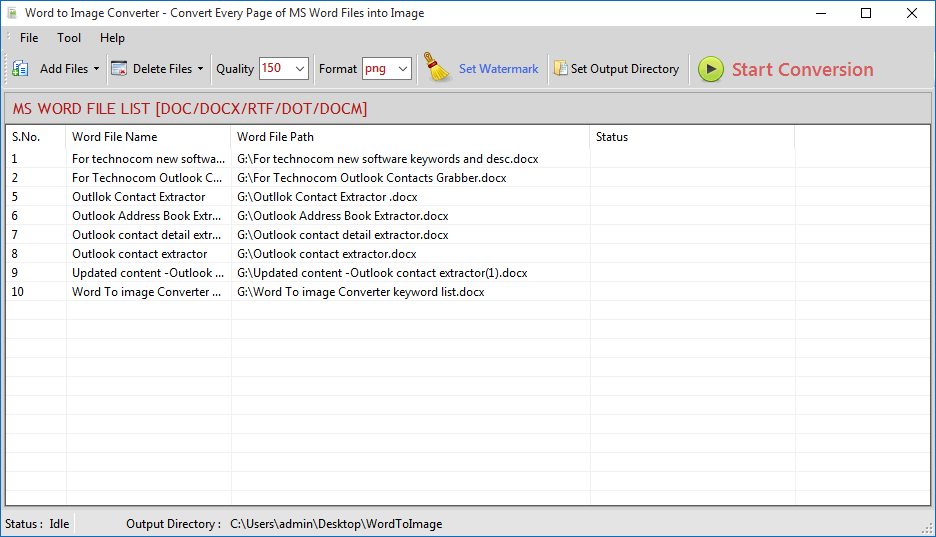
  • Select Word files as many as you want to convert selected files to Image of any formats(.jpg, .tif, .png, .gif, .bmp etc )
  • You can also add all MS Word files from a directory click "Add Files from Folder" button, select a folder and click "ok" button. it will add all available .doc & .docx, .rtf files in selected folder.
word to image word to image
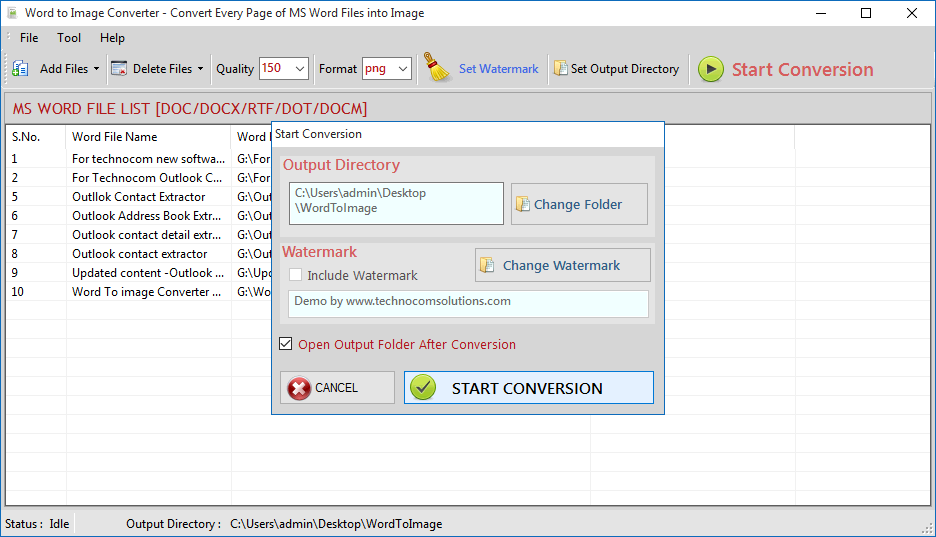
  • You have to select destination/Output folder by click "Change Folder" button.
  • Now you are ready to convert all selected files to a particular format of image as you can select from Format option.
  • Finally click "Start Conversion" button and process/conversion will be started.
word to image
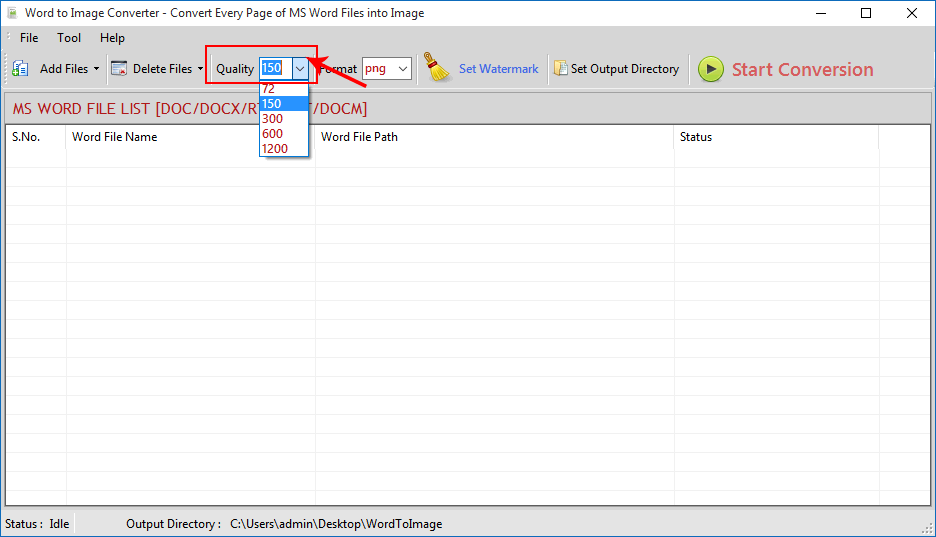
  • Change Image Quality from Quality option
  • Select the range of quality from list.
word to image
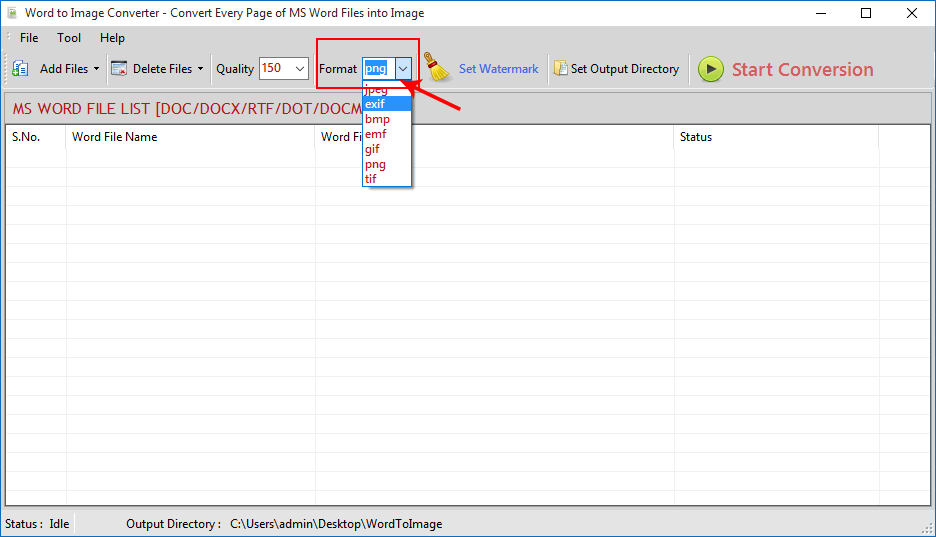
  • Also change Image formats to convert the word file (.jpg, .tif, .png, .gif, .bmp etc ).
  • Select from the list given in the Format option according to you.
word to image
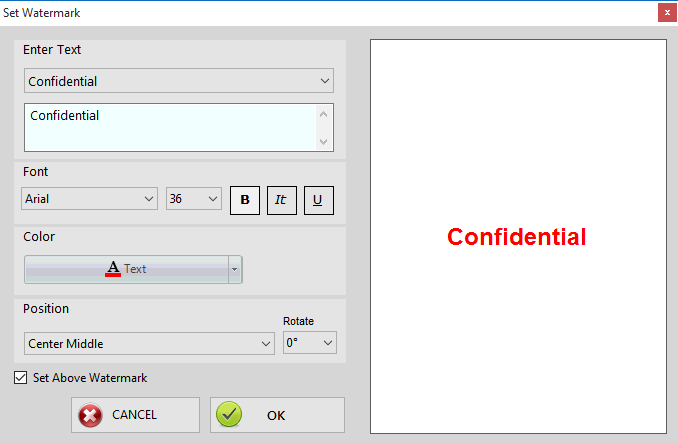
  • Click on Set Watermark option.
  • Select any text from list or write your own text in Enter Text option.
  • Change font and size from Font option.
  • You can also change the position of water mark according to you from Position option.
  • Also Rotate its position from Rotate Option.
  • Then click on Set Above Watermark check box to set the change you made and then press ok.
word to image
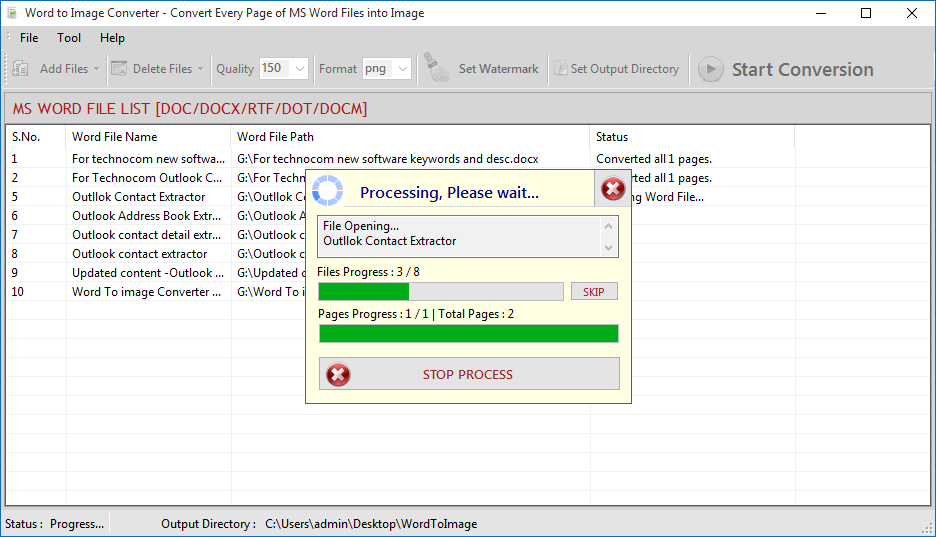
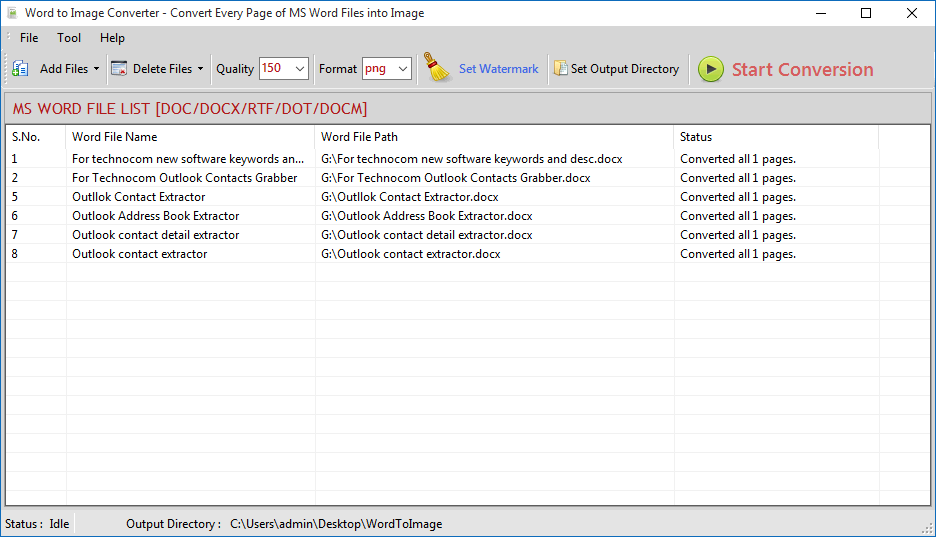
  • Click on Start Conversion button to start the process.
  • Select destination/Output folder by click "Change Folder" button.
  • Finally click "Start Conversion" button and process/conversion will be started.
word to image word to image word to image
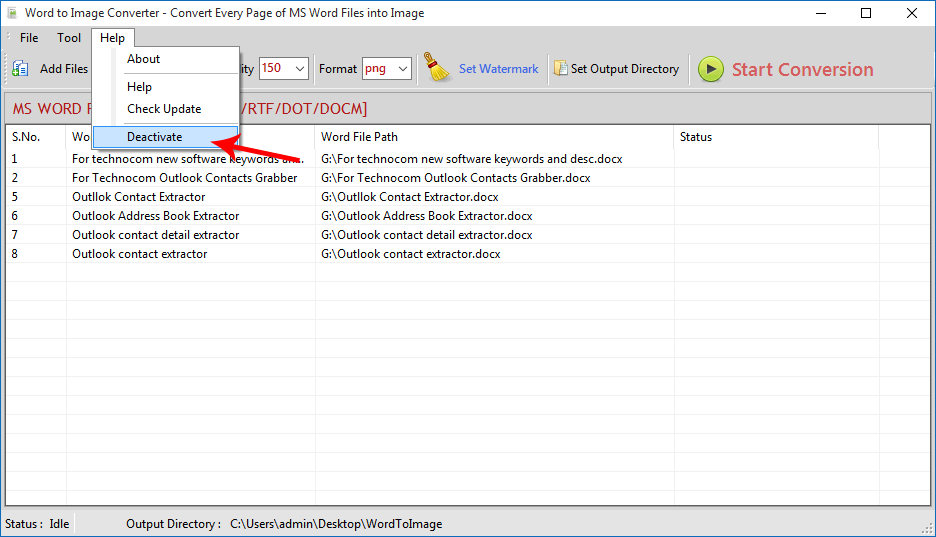
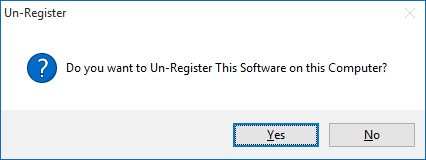
  • Go to: Help Menu Now click on Deactivate option
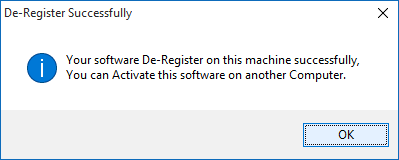
  • Step 1 : Deactivate from current PC.
  • Step 2 : Install the software on new PC and Register it with same Activation Key.
word to image word to image word to image

Copyright © 2019 Technocomsoft | Powered by Technocom Solutions

↑


Offer

We would like to notify you that our server may experience down due to scheduled maintenance, and our software may not be operational during this period.