
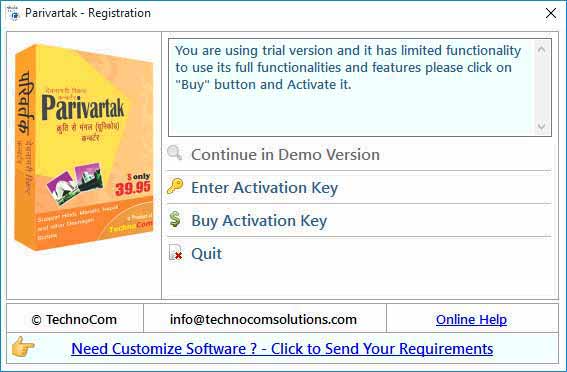
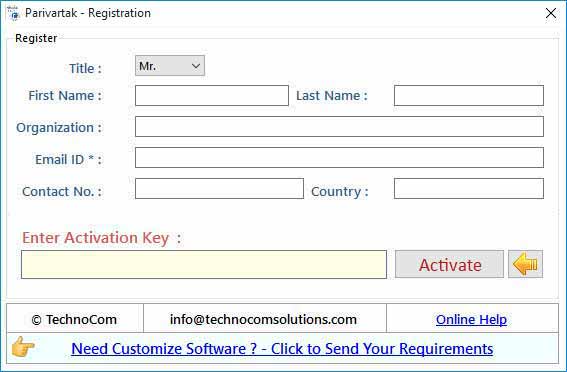
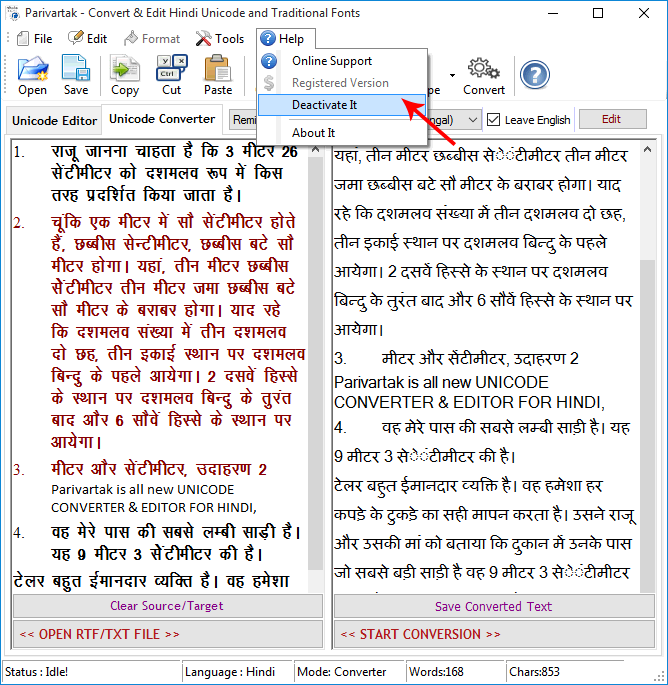
Register: To register the "Parivartak" click on the "Enter Activation Key" Button and fill the Registration Detail with the Activation Code. Buy : You have to Buy "Parivartak" to get Activation Code. You Can Buy it From our Site by Clicking on "Buy Activation Key" button. Try Demo: You can use trial version of "Parivartak" by click "Continue in Demo Version" button, trial version provides you limited functionality & features.
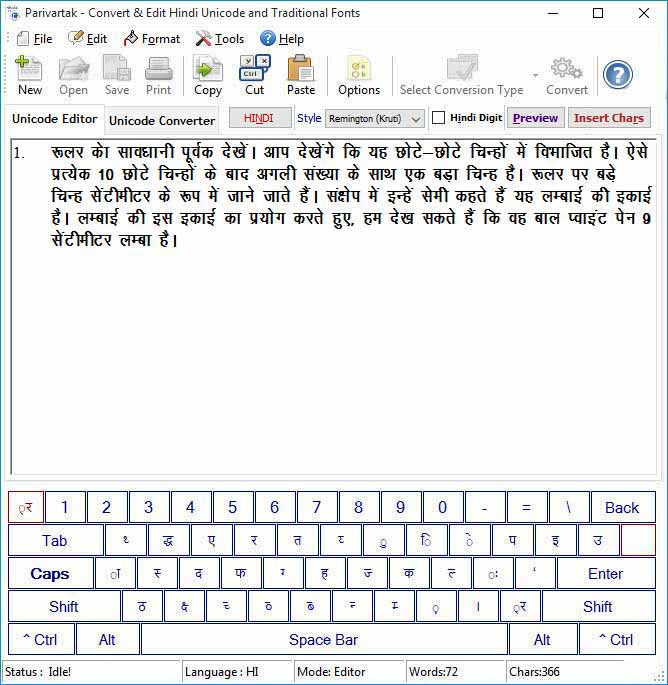 In Parivartak Unicode Editor you can type Hindi and Other
Devnagari Script like Marathi, Nepali, Konkani, Kashmiri, Maithili
and Sanskrit in Mangal or Arial Unicode MS as you type in Kruti or Shusha
Font.. Enable Remington (Kruti) layout for typing Hindi in Unicode Mangal font as
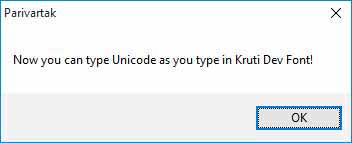
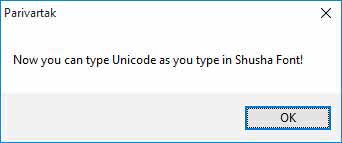
Kruti Style of typing press Ctrl+Shift+R. Confirm Alert Message appears, click ok
and Start typing.
In Parivartak Unicode Editor you can type Hindi and Other
Devnagari Script like Marathi, Nepali, Konkani, Kashmiri, Maithili
and Sanskrit in Mangal or Arial Unicode MS as you type in Kruti or Shusha
Font.. Enable Remington (Kruti) layout for typing Hindi in Unicode Mangal font as
Kruti Style of typing press Ctrl+Shift+R. Confirm Alert Message appears, click ok
and Start typing.
 Enable Semi Phonetic (Shusha) layout for typing Hindi and
Other Devnagari Script like Marathi, Nepali, Konkani, Kashmiri, Maithili
and Sanskrit in Unicode Mangal font as Shusha Style of typing press
Ctrl+Shift+P. Confirm Alert Message appears, click ok and Start typing.
Enable Semi Phonetic (Shusha) layout for typing Hindi and
Other Devnagari Script like Marathi, Nepali, Konkani, Kashmiri, Maithili
and Sanskrit in Unicode Mangal font as Shusha Style of typing press
Ctrl+Shift+P. Confirm Alert Message appears, click ok and Start typing.
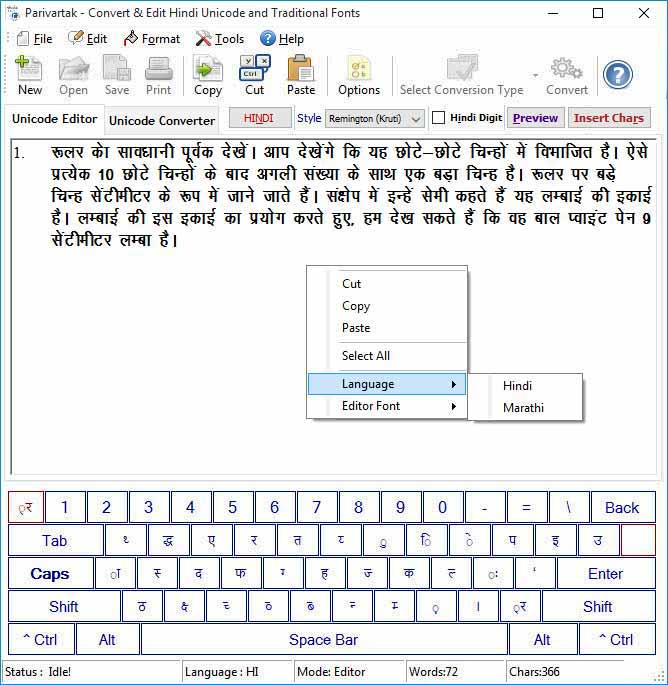
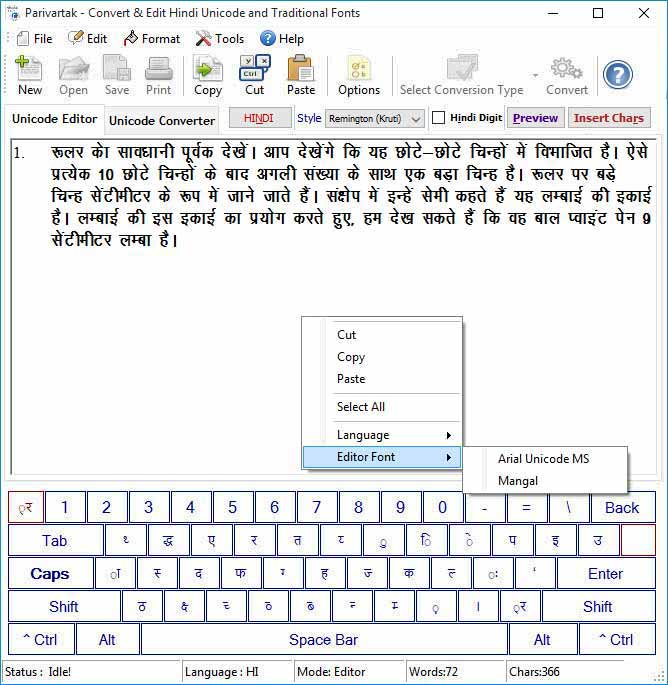
Editor Font : You can change Editor Font to Arial Unicode MS or
Mangal.
 Saving Unicode Text in RTF/TXT Format to save typed unicode text in RTF/TXT File
just press Ctrl+S or click Save As from File Menu. Enter File Name in Save Dialog
Box.
Saving Unicode Text in RTF/TXT Format to save typed unicode text in RTF/TXT File
just press Ctrl+S or click Save As from File Menu. Enter File Name in Save Dialog
Box.
Preview typed Unicode Mangal text in Notepad/MS Word/Web browser by clicking on Preview Button.
Printing Text to print simply press Ctrl+P or click on Print from File Menu. Print Dialog box appears choose Printer Name and press Print.
Onscreen Keyboard in Editor Mode, you can see an onscreen keyboard, it helps you to insert unicode text if you do not know any type of Hindi typing.
Special Characters in Unicode Editor can be inserted by cliking on chars buttons or by their ascii value.
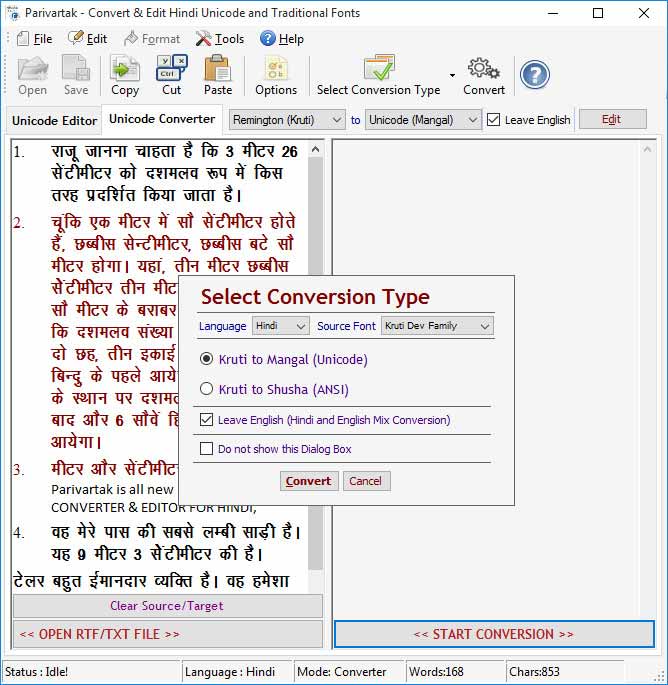
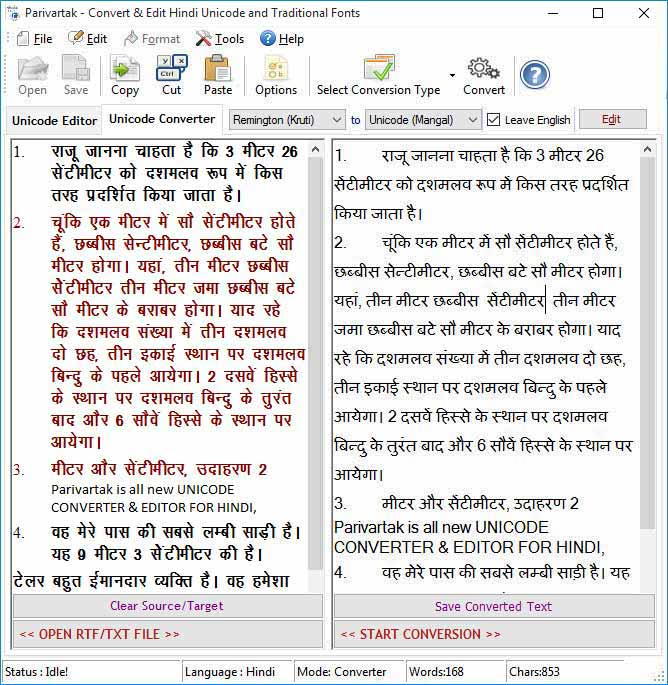
 After that just press “START CONVERSION” button or press Ctrl +
Shift + C an “Select Conversion Type” option dialog appears
choose your desired conversion optiosn and press “Convert”.
Language : Select Marathi if your source text is in Marathi Language so
that you can get accurate conversion for example in Marathi English fulstop used as purnviram not
danda and some characters will not be converted if you choose Hindi for Marathi Language. So,
it is recommended to select correct Language. For other Devnagri Script select
Hindi.
Source Font : Select the source font of your source text, If your text is in Shusha or
Shivaji, you can select either Shusha or Shivaji.
You can hide ‘Select Conversion Type’ dialog box if you want to use
current selected conversion settings for further process. You can show “Select
Conversion Type” dialog box by clicking on Tools Menu then
"Show Select Conversion Type" or click Options button from toolbar to on
it.. Remember an important point if your source document is a text file do not enable
“Leave English” because source text area will not recognize the format
or font. It means for conversion it is compulsory your source text appears in correct font otherwise
conversion treat it as english text and skip conversion. In this case, unchecked the "Leave
English" and start conversion, you will get the conversion correctly.
After that just press “START CONVERSION” button or press Ctrl +
Shift + C an “Select Conversion Type” option dialog appears
choose your desired conversion optiosn and press “Convert”.
Language : Select Marathi if your source text is in Marathi Language so
that you can get accurate conversion for example in Marathi English fulstop used as purnviram not
danda and some characters will not be converted if you choose Hindi for Marathi Language. So,
it is recommended to select correct Language. For other Devnagri Script select
Hindi.
Source Font : Select the source font of your source text, If your text is in Shusha or
Shivaji, you can select either Shusha or Shivaji.
You can hide ‘Select Conversion Type’ dialog box if you want to use
current selected conversion settings for further process. You can show “Select
Conversion Type” dialog box by clicking on Tools Menu then
"Show Select Conversion Type" or click Options button from toolbar to on
it.. Remember an important point if your source document is a text file do not enable
“Leave English” because source text area will not recognize the format
or font. It means for conversion it is compulsory your source text appears in correct font otherwise
conversion treat it as english text and skip conversion. In this case, unchecked the "Leave
English" and start conversion, you will get the conversion correctly.
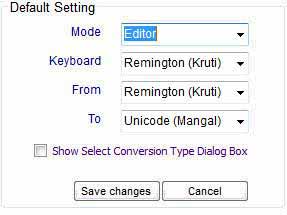
 You can change Default Settings of Parivartak By Clicking on
Options Button. If you want to set Editor or
Converter as a Default Screen, just click on Options Button and
change the setting and Press Save Button.
You can change Default Settings of Parivartak By Clicking on
Options Button. If you want to set Editor or
Converter as a Default Screen, just click on Options Button and
change the setting and Press Save Button.
Copyright © 2019 Technocomsoft | Powered by Technocom Solutions
↑