
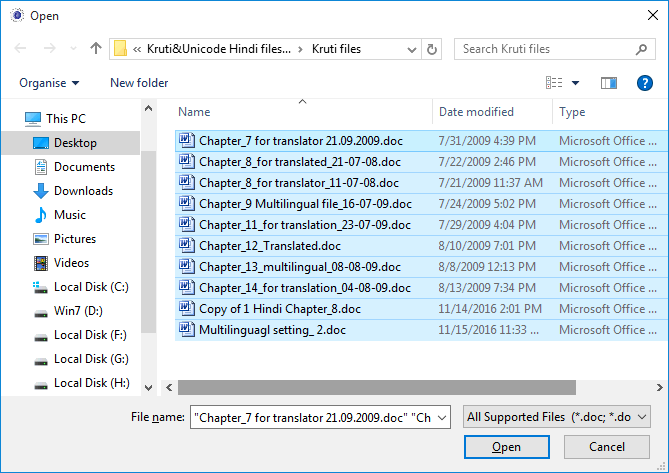
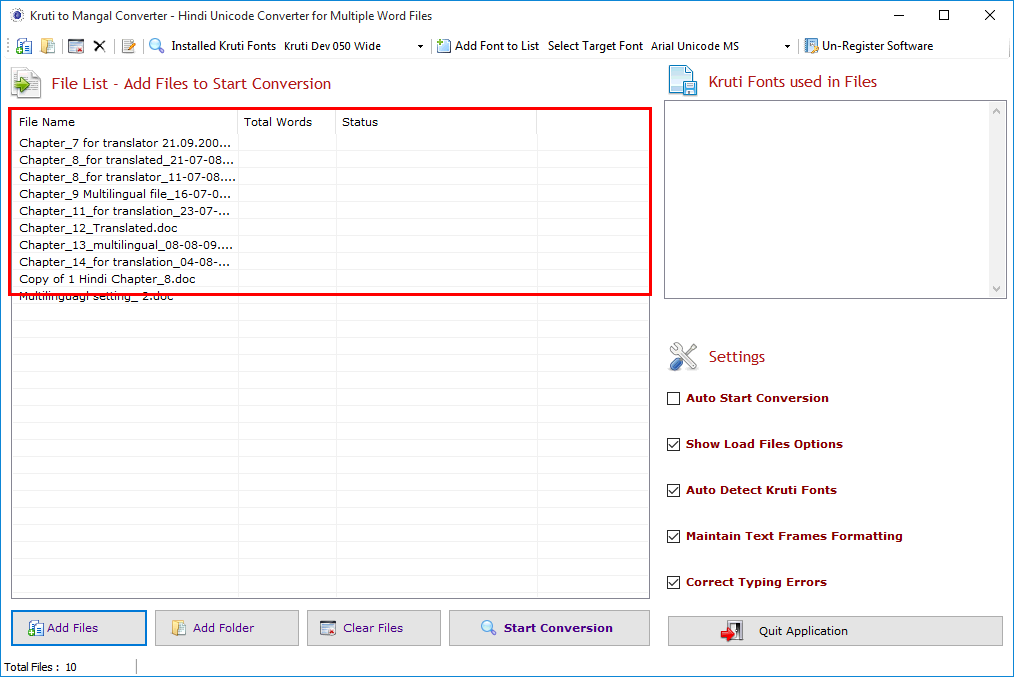
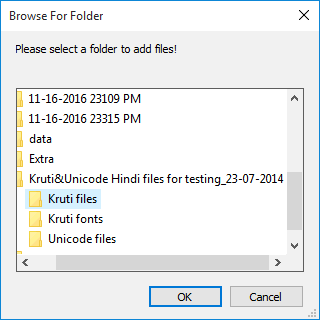
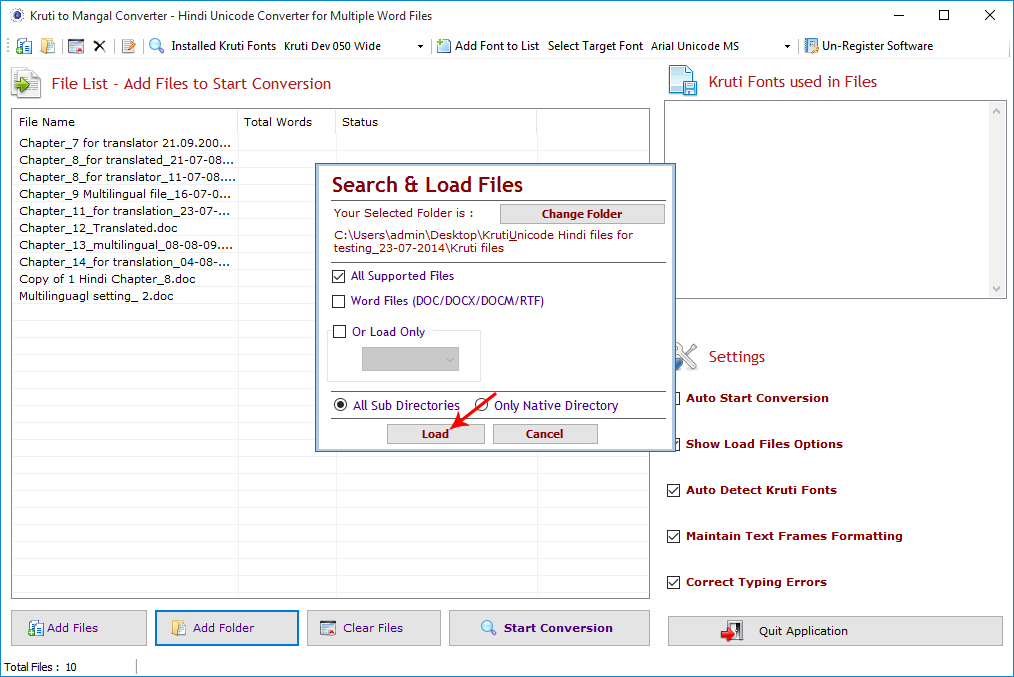
 You can see in (fig.) Search and load files Window is appear after
selecting folder and click on Load button to load the files.
You can see in (fig.) Search and load files Window is appear after
selecting folder and click on Load button to load the files.
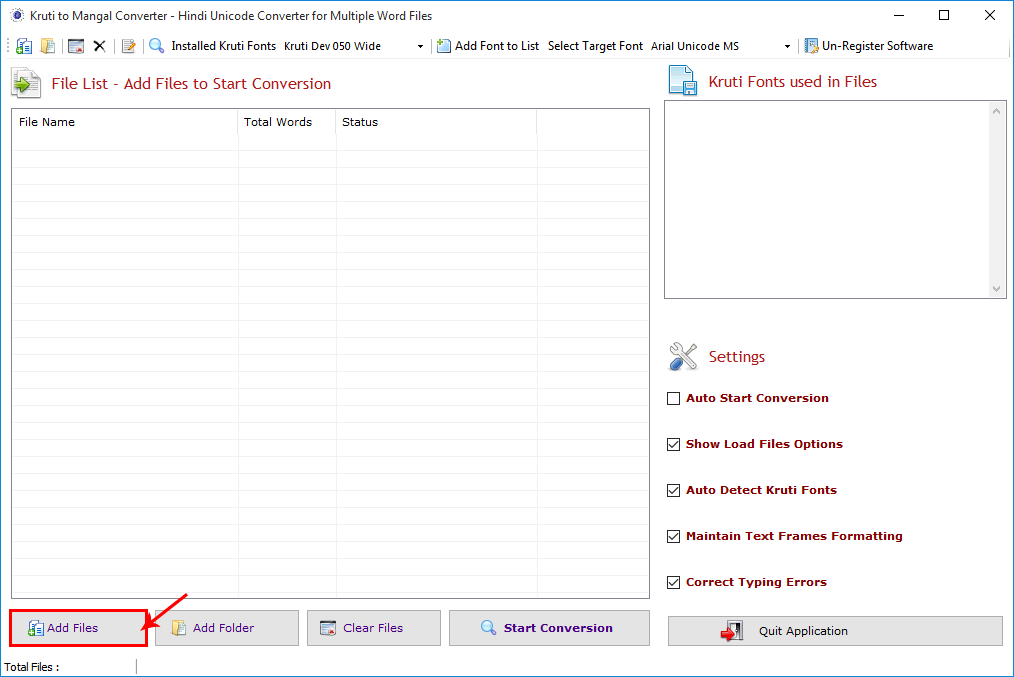
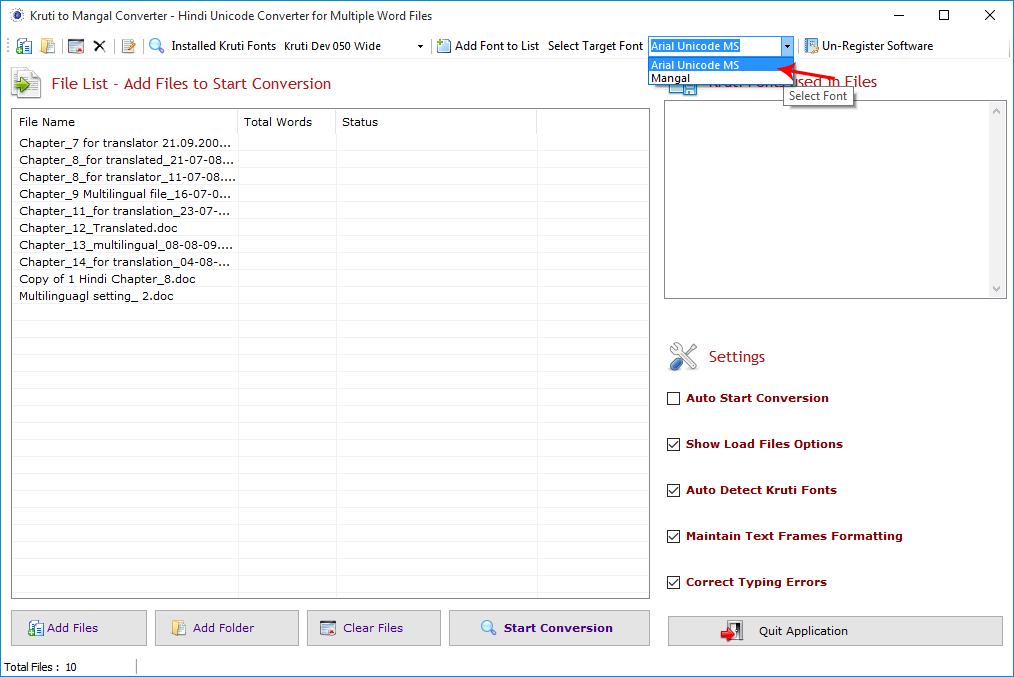
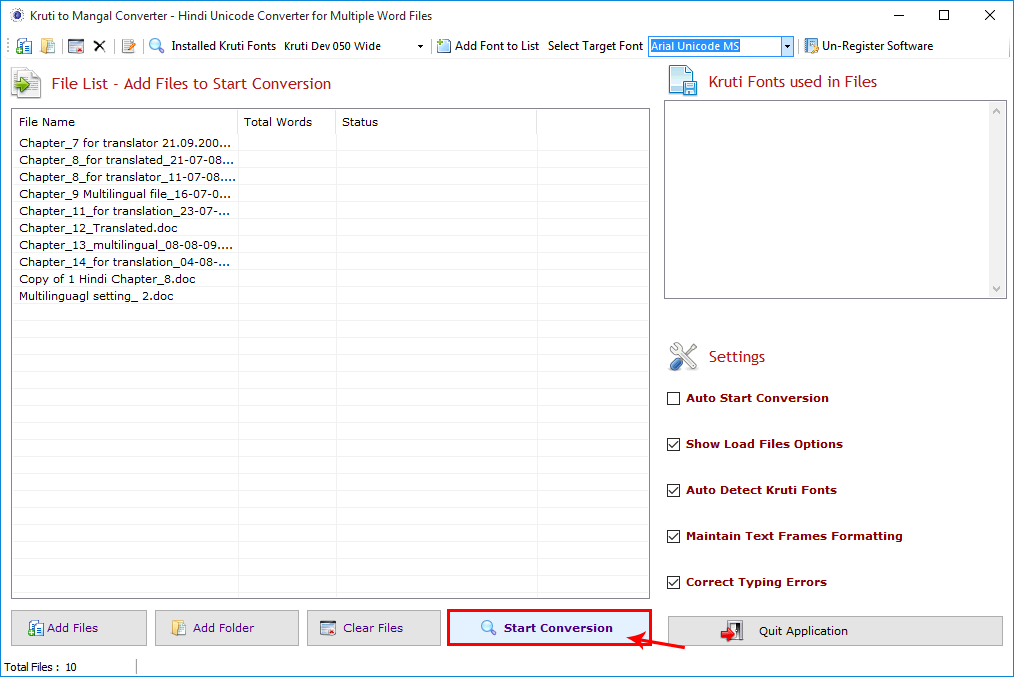
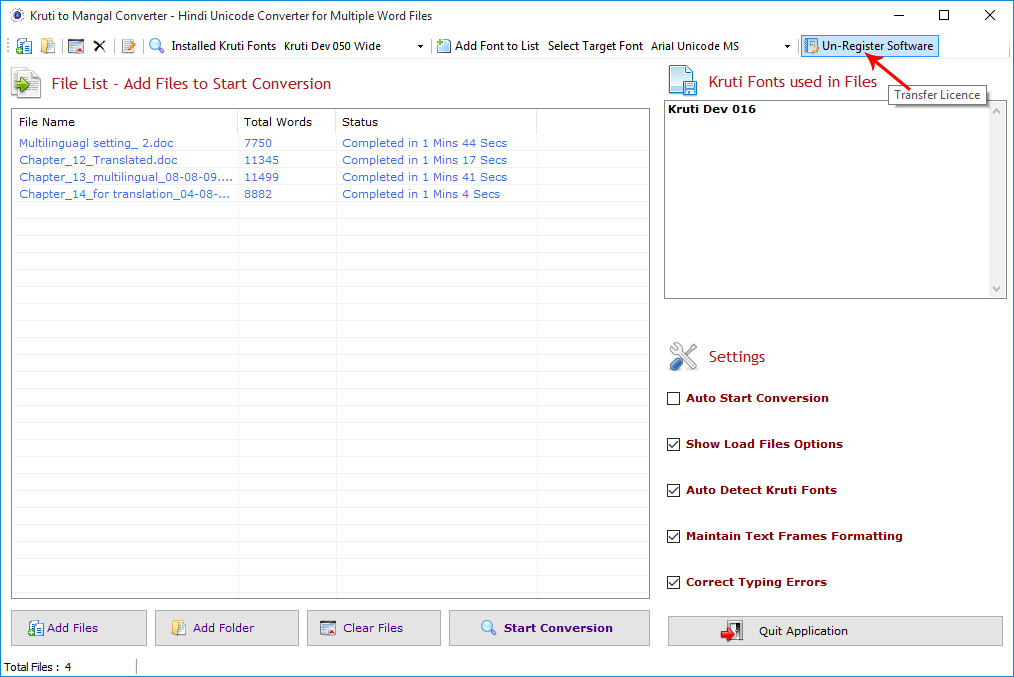
You can see in (fig). Files are added to the list from the selected folder. you can also change or select the target font on the right side before start conversion.
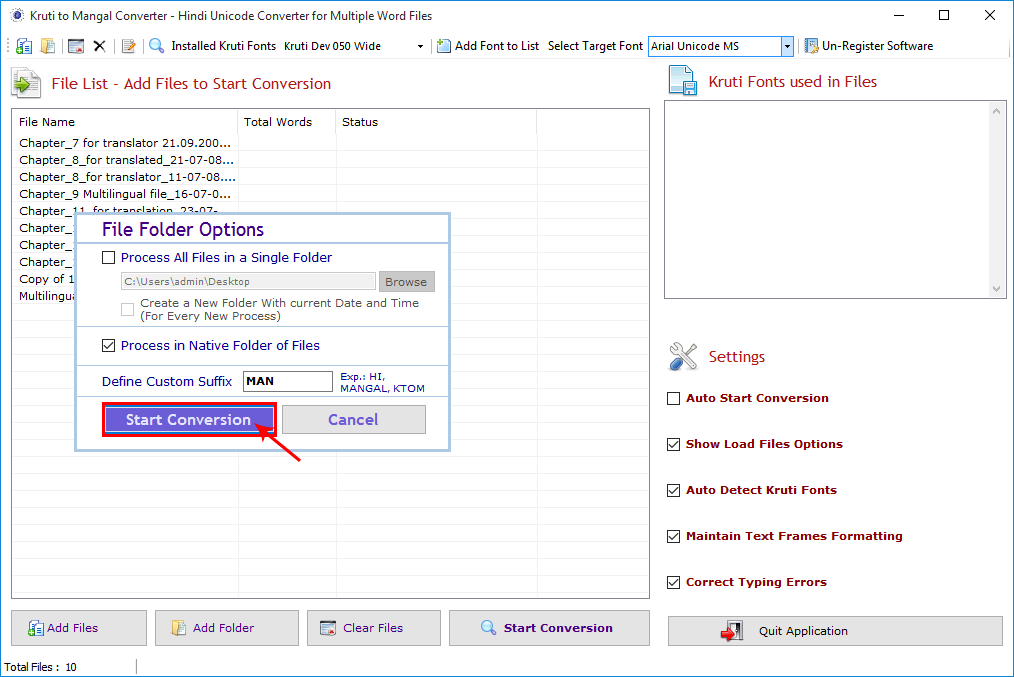
 If you wish to process all files in a single folder just checked on “Process All Files
in a Single Folder”, select the folder by clicking on
“browse” button. If you wish to create a new folder for every new
process in your select. Or you can process the all files in their native folder with a suffix at the
end of filename. You can see below
If you wish to process all files in a single folder just checked on “Process All Files
in a Single Folder”, select the folder by clicking on
“browse” button. If you wish to create a new folder for every new
process in your select. Or you can process the all files in their native folder with a suffix at the
end of filename. You can see below
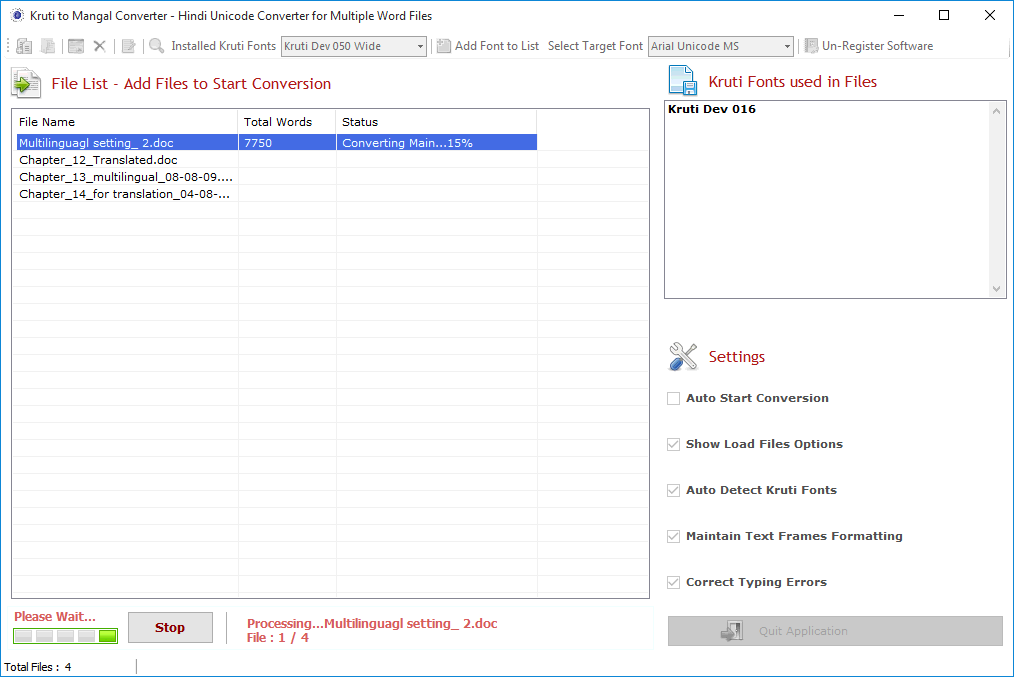
 Click on "Start Conversion” button to start the final process. After
click on Start Conversion button process will start to convert Kruti font to Mangal. You can see in
below
Click on "Start Conversion” button to start the final process. After
click on Start Conversion button process will start to convert Kruti font to Mangal. You can see in
below
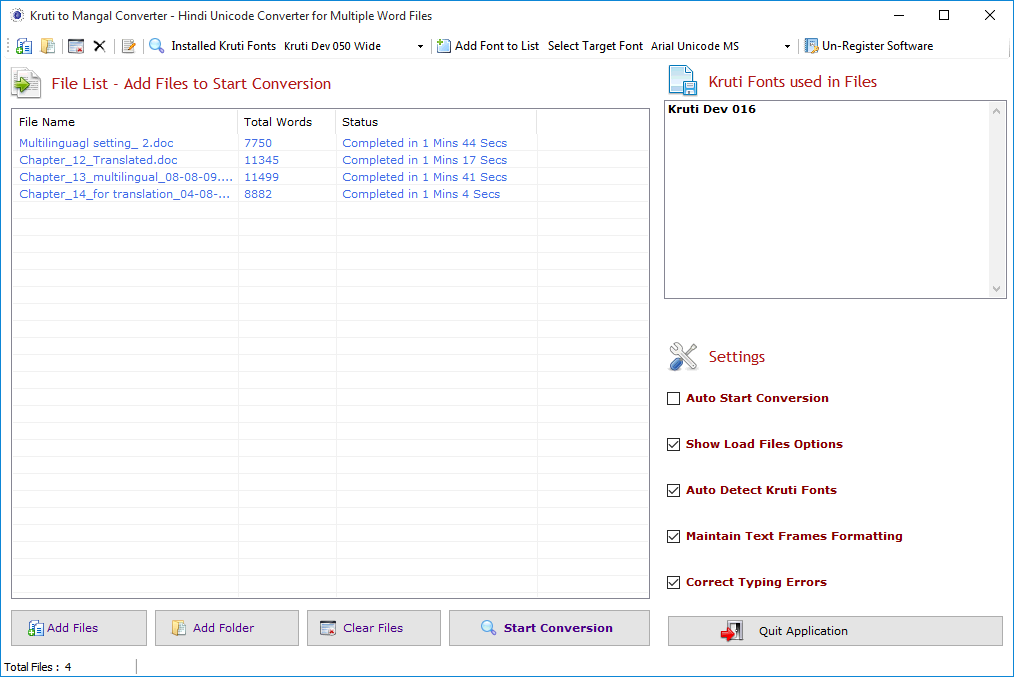
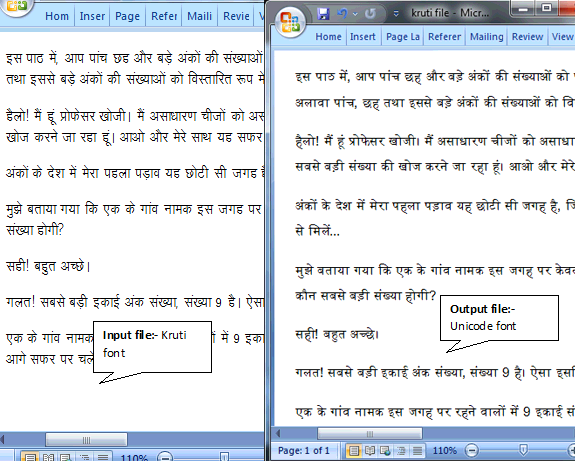 When the process is completed you can check the output file on your selected target folder or by
default on desktop.
When the process is completed you can check the output file on your selected target folder or by
default on desktop.
Copyright © 2019 Technocomsoft | Powered by Technocom Solutions
↑